
Table of Contents
- 5 Steps to Transfer Lightroom Presets to Mobile
- How To Transfer Lightroom Presets To Your Phone
- What You'll Need Before Starting
- Step 1: Update Lightroom Apps
- Step 2: Import Presets to Lightroom Desktop
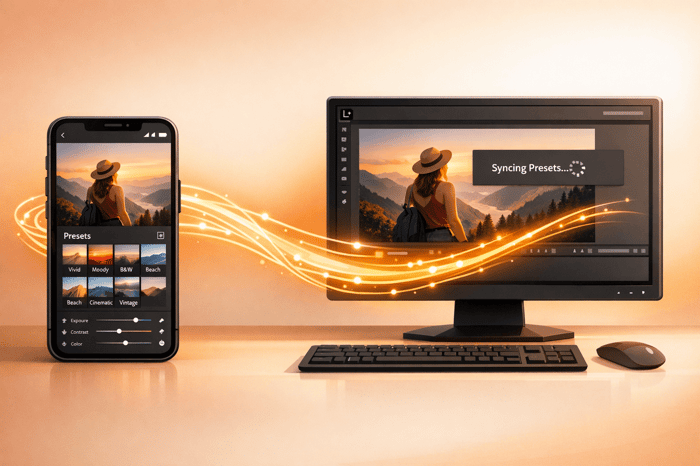
- Step 3: Sync Presets with Creative Cloud
- Step 4: Access Presets on Lightroom Mobile
- Step 5: Apply Presets to Mobile Photos
- Get Quality Presets from Presets.io
- Conclusion
- FAQs
5 Steps to Transfer Lightroom Presets to Mobile
Transferring Lightroom presets to your mobile device is simple and takes just five steps. Start by ensuring you have the latest versions of Lightroom on both desktop and mobile, as well as an active Adobe Creative Cloud subscription. Here's a quick summary of the process:
- Update Lightroom Apps: Make sure both desktop and mobile apps are up-to-date to avoid syncing issues.
- Import Presets to Desktop: Add your
.xmpor.zippreset files into Lightroom Desktop. - Sync with Creative Cloud: Check that syncing is enabled and your presets are uploaded to the cloud.
- Access Presets on Mobile: Open the Lightroom mobile app, navigate to the Presets section, and locate your synced presets.
- Apply Presets to Photos: Select a preset, preview its effect, and fine-tune your edits as needed.

5 Steps to Transfer Lightroom Presets from Desktop to Mobile
How To Transfer Lightroom Presets To Your Phone
If you prefer a device-specific guide, you can also learn how to import presets to Lightroom on iPhone directly.
sbb-itb-b27063b
What You'll Need Before Starting
To successfully transfer presets, you'll need to get a few things ready. Adobe's cloud syncing technology plays a key role here, so having the right apps, file formats, and account setup is essential.
Adobe Lightroom Apps and Subscription

First, ensure you have the Adobe Lightroom app installed on your desktop and the Lightroom mobile app on your iOS or Android device.
An active Adobe Creative Cloud subscription is necessary for automatic syncing between devices. Without a subscription, you'll need to manually import presets using DNG files. Adobe employee Rikk Flohr explains it best:
"For subscribed customers, logging into the same Adobe ID on your new phone as your old phone will allow the presets to sync automatically to the cloud and back down to your new phone".
Preset File Formats
Your presets must be in a compatible format to work seamlessly with Lightroom. The most widely supported format is .XMP, which syncs effortlessly between the desktop and mobile versions of Lightroom CC. Once imported to your desktop, these files automatically transfer through Creative Cloud.
For users without a paid subscription or those focusing on mobile, .DNG files are an alternative. However, if you have older .lrtemplate files from legacy Lightroom versions, you'll need to convert them to .XMP first, as they don't support syncing.
Same Adobe ID on Both Devices
Both your desktop and mobile apps must be logged into the same Adobe ID for cloud syncing to function. Double-check that the email address matches on both devices. This shared account ensures your presets transfer automatically.
Technology trainer Melissa Arnold underscores this requirement:
"Make sure that you are logged in with the same Adobe ID to both the Lightroom desktop and mobile app versions so Lightroom can sync the imported preset to the cloud and across your devices".
If your presets fail to show up on mobile after importing them to desktop, a mismatched Adobe ID is often the issue.
Once you've confirmed these essentials, you're ready to move on to updating your Lightroom apps in Step 1.
Step 1: Update Lightroom Apps
To transfer presets successfully, make sure both your desktop and mobile Lightroom apps are updated to their latest versions. Running outdated software can interfere with syncing. For example, Adobe added key preset features in recent updates - iOS users only gained the ability to directly import XMP presets in June 2024, while Android users have had this capability since April 2020.
Here’s how to update Lightroom on your devices:
Updating Lightroom on Desktop
- Open Lightroom CC and navigate to Help > Updates. This will launch the Adobe Creative Cloud console.
- If you see an "Update" button next to Lightroom, click it to install the latest version.
- To check your current version, go to Help > System Info.
After updating, look for the cloud icon in the desktop app. If it says "Syncing" or "Synced", it means the app is properly connected to Creative Cloud.
Updating Lightroom on Mobile
For mobile updates, head to the App Store (iOS) or Google Play Store (Android). If an update is available, tap the "Update" button.
"The June 2024 update to Lightroom for iOS slipped in a new feature that finally gives us the ability to directly import presets into Lightroom mobile".
Without these updates, transferring presets will likely encounter issues. Once updated, you can explore new Lightroom presets to enhance your mobile editing workflow. So, double-check that everything is up to date before moving forward.
Step 2: Import Presets to Lightroom Desktop
Once your apps are up to date, it's time to import your preset files into Lightroom Desktop. The process is simple, but knowing the right file formats and steps can save you some hassle.
Downloading Presets
Presets typically come as .xmp files, which are compatible with Lightroom CC and Lightroom Classic (version 7.3 or later). If you're working with older versions (like 4, 5, or 6), you'll need .lrtemplate files instead. Most preset packs are delivered as .zip files, and newer versions of Lightroom allow you to import these ZIP files directly - no need to extract them first.
When you download your presets, they’ll likely land in your Downloads folder. Leave the ZIP file as is for now. Importing the compressed file keeps the creator’s folder structure intact, which can be helpful for organization.
Importing Presets
Once your files are ready, you can start importing them into Lightroom.
In Lightroom CC, go to File > Import Profiles and Presets. A dialog box will open, allowing you to select your preset files or the ZIP folder from your computer. Click Import, and the presets will show up under User Presets in the Presets panel.
For those using Lightroom Classic, switch to the Develop module and locate the Presets Panel on the left-hand side. Click the "+" icon and choose Import Presets. Select your files and hit Import.
"Selecting the ZIP file(s) is the preferred import method here, because it preserves the folder structure of the archive." – Misha Martin, Photographer
If the presets don’t appear right away, try restarting Lightroom. Once imported, they’ll sync automatically to your Creative Cloud account, preparing you for the next steps.
Step 3: Sync Presets with Creative Cloud
Once you've imported your presets into Lightroom Desktop, they start uploading to your Creative Cloud account - provided syncing is turned on. This connection is what makes your presets accessible on mobile devices, so it's worth double-checking that everything is syncing as it should.
Checking Cloud Sync Status
Look at the top-right corner of Lightroom Desktop for the cloud icon. Hover over it to see the status of uploads and downloads. If you spot a blue cloud icon with a checkmark, you're good to go - this means everything is "Synced and Backed Up", and your presets are safely uploaded.
However, if the icon says "Paused" or shows a number indicating items still syncing, click on it to get more details. From there, you can hit "Resume" to restart the process. For more in-depth information, open the Sync Preferences window to monitor the syncing activity.
Fixing Sync Problems
If your presets aren’t syncing, try the following steps:
- Ensure your internet connection is stable.
- Sign out and back into your Adobe account on both devices.
- Restart Lightroom Desktop to refresh the sync process.
Also, confirm that you’re using the cloud-based Adobe Lightroom app and not Lightroom Classic. Unlike its cloud-based counterpart, Lightroom Classic doesn’t sync presets to mobile devices in the same way.
Once you've sorted out any syncing issues, you're ready to move on to Step 4 and start using your presets on mobile.

The Master Preset Bundle

$57.00
$672.00
The Master Preset Bundle Every Style. Every Platform. One Download Get 56 high-quality Presets.io collections in one complete bundle — designed to help you edit faster, stay consistent, and get professional-looking results in seconds. Get All High-Quality Preset Collections For… continue reading
Step 4: Access Presets on Lightroom Mobile
Once your presets sync through Creative Cloud, you can easily find them on your mobile device.
Locating Synced Presets
To access your presets, open any photo in the Lightroom mobile app and switch to the Edit view. From there, swipe across the bottom toolbar and tap the Presets icon. This will open the Presets panel. Tap the dropdown arrow or the current group name to see all available categories, including mobile and desktop presets.
Your synced presets usually appear under the User Presets group or in a folder with the same name as the one you created on your desktop. In some app versions, you may need to tap the Yours tab to find your imported presets. If your presets don’t show up, tap the Cloud icon to check if syncing is complete.
Keep in mind that the time it takes for presets to sync can vary depending on the number of files and your internet connection.
Sync Duration
For smaller batches of presets, syncing typically only takes a few minutes. Larger collections, however, might require more time. As Judyth Satyn from Shotkit explains:
"When you do this, all information from one device can be shared immediately with the other".
The Luxe Lens also highlights:
"If you imported a large amount of presets, you may experience a delay as they load into your mobile app".
To ensure a smooth process, make sure your devices remain connected to the internet and give extra time for larger libraries to sync completely.
Step 5: Apply Presets to Mobile Photos
With your presets synced, you’re ready to start editing your mobile photos like a pro.
Selecting and Applying Presets
To get started, open a photo in Lightroom Mobile and tap the Presets icon (it looks like overlapping circles or a stack of sliders). From there, open the panel by selecting the Yours tab or tapping the downward arrow next to the current group name. Your imported presets will appear under the User Presets group or in the folder you named during the import process.
Tap on a preset to preview its effect on your photo instantly. This gives you the freedom to browse through different styles without locking anything in. When you find the look you love, tap the checkmark (✓) or the "Done" icon to apply it. If you don’t see your presets, revisit Step 3 for tips on syncing issues.
Once the preset is applied, you can move on to fine-tuning your edits for a polished result.
Making Adjustments
Applying a preset is just the beginning. Lightroom presets keeps all the adjustment sliders - like exposure, contrast, color, and effects - fully editable. Use the toolbar at the bottom of the screen to tweak these settings until you achieve the look you’re aiming for.
Want to see how far your edits have come? Press and hold your finger on the image to view the original version, then release to see your updated photo. If you end up with a custom look you’d like to use again, save your adjustments as a new preset for future edits.
Get Quality Presets from Presets.io

Once you've transferred your presets, take your editing game up a notch with premium options that seamlessly sync across your devices.
Why Choose Presets.io?
Presets.io offers presets tailored for Adobe Creative Cloud that sync effortlessly across all your devices. Import them on your desktop, and they’ll be ready to use on your phone or tablet without any extra steps.
With a stellar 4.8/5 rating from 1,419 reviews, users rave about how intuitive and reliable these Lightroom presets are. The collections include aesthetic, cinematic, vintage film, Kodak, and wedding styles, giving you the tools to maintain a consistent editing style across your projects and devices. Whether you're perfecting shots on your laptop or tweaking images on your phone during a shoot, your edits will always look polished and cohesive.
Dive into their wide range of collections to find the perfect match for your creative needs.
Browse Collections
Presets.io continually expands its offerings, releasing new preset collections every week. These collections are designed to meet a variety of editing scenarios and styles.
One standout option is the Master Preset Bundle, which includes 721 presets for mobile (DNG format), 721 for desktop (XMP/lrtemplate), and 721 LUTs for video. This bundle is available for just $49.00, a significant drop from its regular value of $672.00. For smaller collections, individual Lightroom presets are typically priced at $12.00 during sales (regularly $27.00), while themed bundles like Cinematic or Vintage are offered at $39.00.
To make browsing easier, head to the "Explore Collections" tab on their website. You can filter by specific styles like "Moody Blue", "Minimalist", or "Fuji Film". After purchasing, your download link will appear on the confirmation page and in your email. If you misplace the link, simply log into the "My Account" section to retrieve your files.
Conclusion
Transferring Lightroom presets to your mobile device is a simple process that keeps your editing tools consistent across platforms. Thanks to Adobe's cloud syncing, there's no need for manual file transfers. As Adobe explains, "Presets you import or create in Adobe Lightroom on a computer automatically sync to the cloud and to your mobile devices".
The most important step? Make sure you're signed into the same Adobe ID on both your desktop and mobile apps. This ensures everything syncs smoothly and saves you from unnecessary troubleshooting later.
Once your Lightroom presets are synced, your workflow becomes effortlessly portable. You’ll be able to edit photos on the go with the same precision and quality as on your desktop. Your presets follow you wherever you are, so you can spend less time tweaking settings and more time capturing stunning moments.
For an even better mobile editing experience, check out Presets.io's curated collections. Their professional-grade styles - like cinematic, vintage, and aesthetic looks - sync seamlessly across devices, giving you instant access to high-quality edits no matter where you're working.
FAQs
Why aren’t my Lightroom presets syncing to the mobile app?
If your Lightroom presets aren’t showing up on the mobile app, here are some steps you can take to troubleshoot the issue:
- Confirm you’re using the same Adobe account: Double-check that you’re signed into the same Adobe account on both your desktop and mobile devices. This ensures your presets can sync properly.
- Activate syncing: Look for the cloud icon in Lightroom on both desktop and mobile. Make sure syncing is enabled on both devices, as this is key to transferring your presets.
- Verify preset location: On your desktop, ensure your presets are imported into Lightroom and stored in the correct folder. If they’re misplaced, the app might not detect them.
- Manually refresh the sync: Go to your desktop Lightroom, trigger a manual sync, and allow some time for the changes to reflect on your mobile app.
- Restart and check your connection: Close and reopen both the desktop and mobile apps. Also, make sure your internet connection is stable, as syncing won’t work without it.
If these steps don’t resolve the issue, try re-importing your presets into Lightroom or updating the app to the latest version. For issues that persist, reaching out to Adobe Support could provide additional help.
Can I transfer Lightroom presets to mobile without an Adobe Creative Cloud subscription?
Yes, it's possible to transfer Lightroom presets to the mobile app without needing an Adobe Creative Cloud subscription. All you need to do is manually import the presets using the Import Presets option in the app or install them directly onto your device.
This method lets you use your favorite presets for editing on the go, without relying on Creative Cloud syncing.
How can I convert older .lrtemplate presets to .xmp for Lightroom mobile?
To use older .lrtemplate presets on Lightroom mobile, you'll need to convert them into .xmp format first. Here's a simple guide to get it done:
- Open Lightroom Classic on your computer.
- Go to File > Import Profiles & Presets and add the .lrtemplate file.
- In the Presets panel, right-click (or Control-click) the imported preset and select Export > Export as XMP. This will generate the corresponding .xmp file.
- Make sure the new .xmp file is saved in your Presets folder.
- Lightroom will then sync the .xmp preset to your mobile app through Adobe Creative Cloud.
Once you've followed these steps, your preset will be ready for editing on your phone or tablet, making it easy to work on your photos wherever you are.