
Table of Contents
- Lightroom Preset Export: File Formats Explained
- How To Import, Export & Manage Photo Presets in Lightroom Classic
- Lightroom Presets File Formats Explained
- How to Export Presets from Lightroom
- Making Lightroom Presets Work Across Different Versions and Devices
- Best Practices for Sharing and Organizing Exported Presets
- Conclusion
- FAQs
Lightroom Preset Export: File Formats Explained
If you're working with Lightroom presets, understanding the differences between .xmp, .lrtemplate, and .dng file formats is essential for compatibility across devices and Lightroom versions. Here's the quick breakdown:
- .XMP: The current standard for Lightroom presets, introduced in 2018. Works across Lightroom Classic, Lightroom CC, Lightroom Mobile, and Adobe Camera Raw. Ideal for modern workflows.
- .LRTEMPLATE: The older format used in Lightroom 6 and earlier. Automatically converted to
.xmpin newer versions but limited to legacy use. - .DNG: A raw image format that can include Lightroom presets settings. Useful for sharing presets with Lightroom Mobile users who don't have a Creative Cloud subscription.
For most users, .xmp is the best choice due to its broad compatibility. However, if you're working with older Lightroom versions or mobile workflows, you may need .lrtemplate or .dng formats, respectively. Export Lightroom presets as ZIP files for easy sharing and always test them before distribution to avoid issues like missing Lightroom presets or compatibility problems.
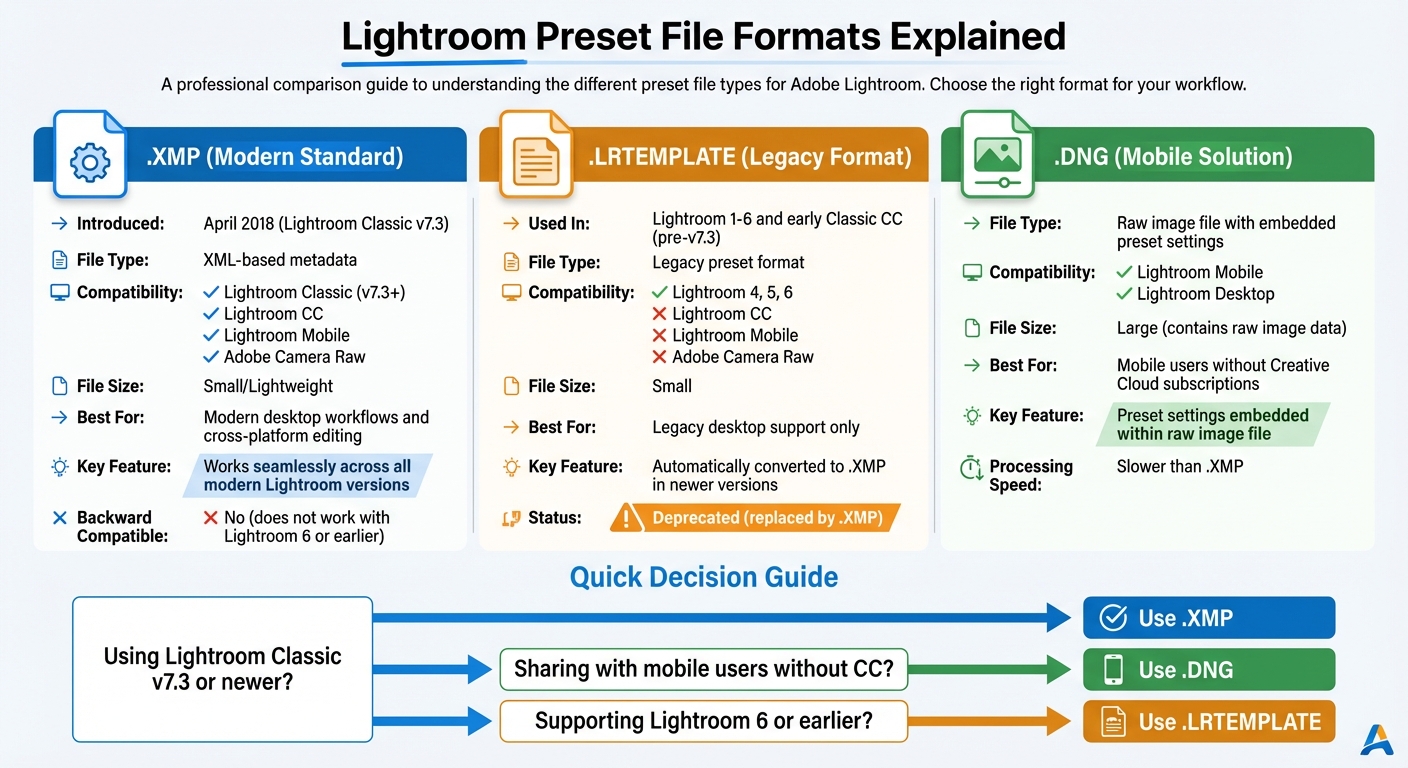
Lightroom Presets File Format Comparison: XMP vs LRTEMPLATE vs DNG
How To Import, Export & Manage Photo Presets in Lightroom Classic
sbb-itb-b27063b
Lightroom Presets File Formats Explained
Getting familiar with the three main Lightroom presets formats - .xmp, .lrtemplate, and .dng - can save you from compatibility issues and streamline your editing process. Each format has a distinct role, and this section breaks down their specific features and uses.
.XMP Files: The Current Standard
.XMP (Extensible Metadata Platform) became the go-to format when Adobe updated Lightroom Classic to v7.3 in April 2018. This XML-based format saves editing adjustments as text metadata, making it lightweight and efficient. One of its biggest strengths is its ability to work seamlessly across multiple platforms, including Lightroom Classic, Lightroom CC, Lightroom Mobile, and Adobe Camera Raw. If you're using any modern version of Lightroom, .xmp files are your best bet for compatibility and ease of use.
Now, let’s look at the older .lrtemplate format and why it’s less practical today.
.LRTEMPLATE Files: The Old Format
.LRTEMPLATE files were the standard in Lightroom versions 1 through 6, as well as early versions of Lightroom Classic prior to v7.3. Unlike the versatile .xmp files, .lrtemplate files are limited to desktop use and cannot be used in Lightroom CC, Lightroom Mobile, or Adobe Camera Raw. These files are only relevant if you're working with someone who uses a standalone version of Lightroom from before April 2018. However, with Adobe's move to a subscription-only model after Lightroom 6, most users have upgraded to the .xmp format. Importantly, Lightroom Classic v7.3 and newer automatically convert .lrtemplate files to .xmp upon import, so you don’t have to worry about manually updating them.
.DNG Files: Camera Profiles for Specialized Workflows
.DNG (Digital Negative) files are raw image files that can also include Lightroom presets settings. Unlike .xmp files, which store only metadata, .dng files combine the raw image data with editing adjustments. These are particularly useful for Lightroom Mobile users, especially those without a Creative Cloud subscription. Mobile devices often can’t import .xmp files directly without syncing through a desktop. With .dng files, you can open the file in Lightroom Mobile, copy the settings, and apply them to your photos to create Lightroom presets.
While .dng files work on both desktop and mobile, they are larger and slower to process compared to .xmp files. For desktop workflows, stick with .xmp for better performance, and reserve .dng for mobile use or when you need to preserve raw image data alongside your edits.
How to Export Presets from Lightroom
Understanding the differences between .xmp, .lrtemplate, and .dng formats is key to successfully exporting your Lightroom presets. Here's a clear guide to help you through the process.
Export Process Step-by-Step
- Exporting Individual .XMP Files: In the Develop module, right-click the Lightroom presets you want to export. Select Export…, choose your destination folder, and click Save. This method works well for sharing a single preset or creating a backup.
- Exporting Multiple Presets: Go to Preferences > Presets and open the Develop Presets folder. From there, you can copy the presets you need to a new location or compress them into a ZIP file for easier distribution.
- Exporting .DNG Files for Mobile Workflows: Apply your Lightroom presets to a photo, then go to File > Export. Choose DNG as the file format and click Export (ideal for cinematic Lightroom mobile presets). To use the preset in Lightroom Mobile, import the .DNG file, select Copy Settings from the photo, and create new Lightroom presets with those adjustments.
The table below provides a handy comparison of these file formats to help you decide which one suits your needs.
File Format Comparison
| File Format | Compatibility | Best For | Notes |
|---|---|---|---|
| .XMP | Lightroom Classic (v7.3+), Lightroom CC, Adobe Camera Raw | Modern desktop workflows and cross-platform editing | Works seamlessly across most modern Lightroom versions |
| .LRTEMPLATE | Lightroom 4, 5, 6, and early Classic CC | Legacy desktop support | Automatically converted to .XMP in newer Lightroom versions |
| .DNG | Lightroom Mobile, Lightroom Desktop | Mobile users without Creative Cloud subscriptions | Preset settings are embedded within a raw image file |
For most scenarios, .XMP is your go-to format thanks to its small file size and compatibility with current Lightroom versions. If you're working with mobile users who can't import .XMP files directly, .DNG is a practical alternative. Meanwhile, .LRTEMPLATE files are useful for maintaining compatibility with older Lightroom versions.
The Master Preset Bundle: Volume II

$69.00
$990.00
The Master Preset Bundle Volume II New Looks. More Styles. Even More Creative Control. Get 66 brand-new Presets.io collections in one powerful Volume 2 bundle — crafted to expand your editing range, refresh your workflow, and deliver polished, professional results in… continue reading
Making Lightroom Presets Work Across Different Versions and Devices
To ensure a smooth editing experience across devices and Lightroom versions, understanding file format compatibility is key.
.XMP Compatibility with Lightroom Versions
In April 2018, Adobe introduced the .xmp format as the new standard for Lightroom presets with the release of Lightroom Classic 7.3. This update brought a major improvement: Lightroom presets could now be used across multiple platforms, including Lightroom Classic, Lightroom CC (cloud-based desktop version), Lightroom Mobile, Photoshop, and Adobe Camera Raw.
"Adobe changed the format that Lightroom presets used from the old .lrtemplate format... to a standard .xmp file format. This new format is also shared with Photoshop and Camera Raw, and in fact presets are now shared between the two." – Thomas Fitzgerald, Professional Photographer and Author
The .xmp files are stored in a "Settings" folder, replacing the "Develop Presets" folder used by the older format. This shared location with Adobe Camera Raw allows you to apply the same preset on Lightroom Classic and continue editing on Lightroom Mobile without any extra steps. Additionally, the .xmp format supports features like enhanced metadata, such as copyright details and sorting options, which weren’t possible with the older .lrtemplate format.
While .xmp files solve many compatibility issues, older .lrtemplate presets still require some attention when working with different Lightroom versions.
Working with Older Presets and Version Differences
If you’re using older .lrtemplate presets, Lightroom Classic 7.3 and later automatically converts them to .xmp format during startup. These converted files are renamed with a tilde (~) to indicate the change. To add older presets manually, place the .lrtemplate files in the preset folder by navigating to Preferences > Presets and selecting Show Lightroom Develop Presets. The conversion will happen the next time you launch Lightroom.
It’s important to note that .xmp presets are not backward-compatible with older standalone versions like Lightroom 6 or earlier. Compatibility only moves forward.
"Consider the .lrtemplate to .xmp conversion process as the 'point of no return' for your presets." – Adam Welch, Author and Photomaker
Best Practices for Sharing and Organizing Exported Presets
Getting your presets ready for others involves more than just creating them. Proper organization and testing can mean the difference between a smooth import process and a frustrating experience. How you package and prepare your presets plays a big role in avoiding errors and simplifying troubleshooting.
How to Organize Presets for Distribution
Start by packaging your presets as a ZIP file. Lightroom Classic makes it easy to import presets directly from ZIP files using the "+" icon in the Presets panel. This method is widely accepted and saves recipients from having to manually locate and move files into the Settings folder.
Before you share your presets, test your ZIP file by importing it yourself. Use the "+" icon in the Presets panel to confirm that Lightroom extracts and groups all presets correctly. While testing, ensure that the "Store presets with this catalog" option is turned off in Preferences > Presets. If this setting is enabled, the presets will only appear when that specific catalog is open, which can confuse users when they switch to a different project and the presets seem to disappear.
Another critical step is to check profile compatibility. Some presets are tied to RAW-only profiles, which won’t work with JPEG files. If you’re creating presets for a broader audience, make sure they’re compatible with both RAW and JPEG formats. Test them on both file types to ensure they function as intended.
Once everything is tested and organized, take a moment to review common problems that might arise. Addressing these ahead of time makes the distribution process much smoother.
Common Problems and How to Fix Them
Missing presets after import is a common issue, often caused by the "Store presets with this catalog" setting being enabled. To fix this, guide users to Preferences > Presets and have them uncheck this option. This ensures the presets are visible across all catalogs.
Partially compatible presets can also cause confusion. Sometimes, certain adjustments in a preset won’t apply to a selected photo, making the preset seem incomplete or missing. Encourage recipients to enable the "Show Partially Compatible Develop Presets" option in Preferences > Presets. This will display all presets, even if some adjustments don’t apply.
Version conflicts present another challenge. Modern .xmp presets won’t work with older versions of Lightroom (like Lightroom 6 or earlier) that use .lrtemplate files. If you’re sharing presets with users on older versions, consider including both formats or clearly stating the minimum Lightroom version required for compatibility.
Conclusion
Choose your file format based on your Lightroom version and the needs of your audience. If you're using Lightroom Classic v7.3 or later, .xmp files are the way to go. They work seamlessly across Lightroom Classic, Lightroom CC, Lightroom Mobile, and Adobe Camera RAW. For older versions of Lightroom, you'll need to use .lrtemplate files. Following these guidelines helps ensure your presets perform consistently across platforms.
When sharing presets, export them as ZIP files and test them thoroughly. If you're designing presets for a broader audience, make sure they're compatible with both RAW and JPEG files.
"The general reasoning behind Adobe's switch from .lrtemplate to .xmp file format was aimed at accomplishing universal Lightroom preset compatibility, sync ability, and Creative Profile functionality across Lightroom Classic, Lightroom CC, Lightroom Mobile, and ACR."
- Adam Welch, Author and Photomaker
For an easier workflow, check out Presets.io. They offer preset collections tailored for modern Lightroom versions, complete with step-by-step installation guides.
FAQs
How do I know which preset format my Lightroom version supports?
To determine which preset formats your version of Lightroom supports, visit the compatibility guide on Presets.io. It provides detailed information about formats such as XMP and LRTemplate. Additionally, you can check Lightroom's export presets and settings, where supported formats are clearly listed. This helps ensure your presets align perfectly with your Lightroom version.
Can I use .xmp presets in Lightroom 6 or earlier?
Yes, .xmp presets work with Lightroom 6 because it supports the .xmp file format. However, if you're using an older version, such as Lightroom 5 or earlier, you'll need presets in the .lrtemplate format instead.
To avoid compatibility issues, double-check your Lightroom version and ensure you're using the correct preset format for your software.
What’s the easiest way to use a preset on Lightroom Mobile without syncing?
To use a preset in Lightroom Mobile without syncing to the cloud, you can import it directly into the app. Start by opening Lightroom Mobile and selecting a photo. Then, tap on Presets and choose the import option to add the preset file (such as XMP or DNG) from your device. This approach allows you to apply presets without relying on Lightroom Cloud or desktop syncing.