

Table of Contents
Lightroom Preset Transfer: Common Questions Answered
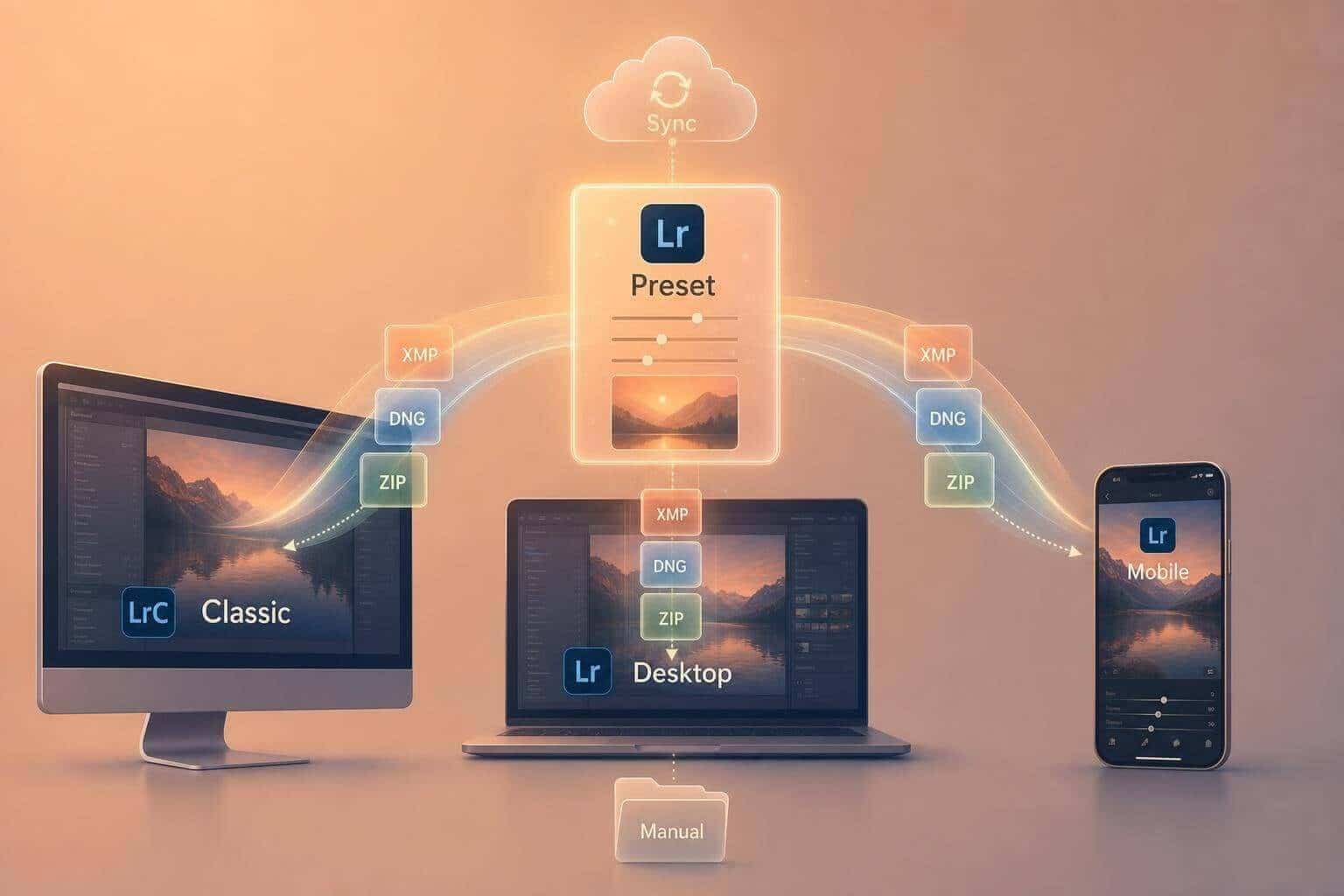
Yes - you can move Lightroom presets, but the right path depends on your app and file type. In most cases, you’ll use one of 3 methods: copy Lightroom preset folders to a new computer, sync presets through Adobe Cloud, or import XMP/DNG files on mobile.
Here’s the short version:
- Moving to a new computer? Copy Lightroom Classic preset folders manually.
- Moving between desktop and phone? Use Adobe Cloud on the same Adobe account.
- Only have a DNG sample file? Import it into Lightroom mobile on Android and save it as a Lightroom preset.
- Preset not showing up? The file is often still zipped, in the wrong app, or stuck in sync.
- Using old preset files?LRTEMPLATE files may need conversion before they work well in newer Lightroom apps.
I’d check these 4 things first before doing anything else:
- Which Lightroom app you use: Classic, desktop, or mobile
- Which file type you have: XMP, LRTEMPLATE, DNG, or ZIP
- Whether sync is possible: same Adobe ID, sync turned on
- Whether presets are stored locally: especially in Lightroom Classic
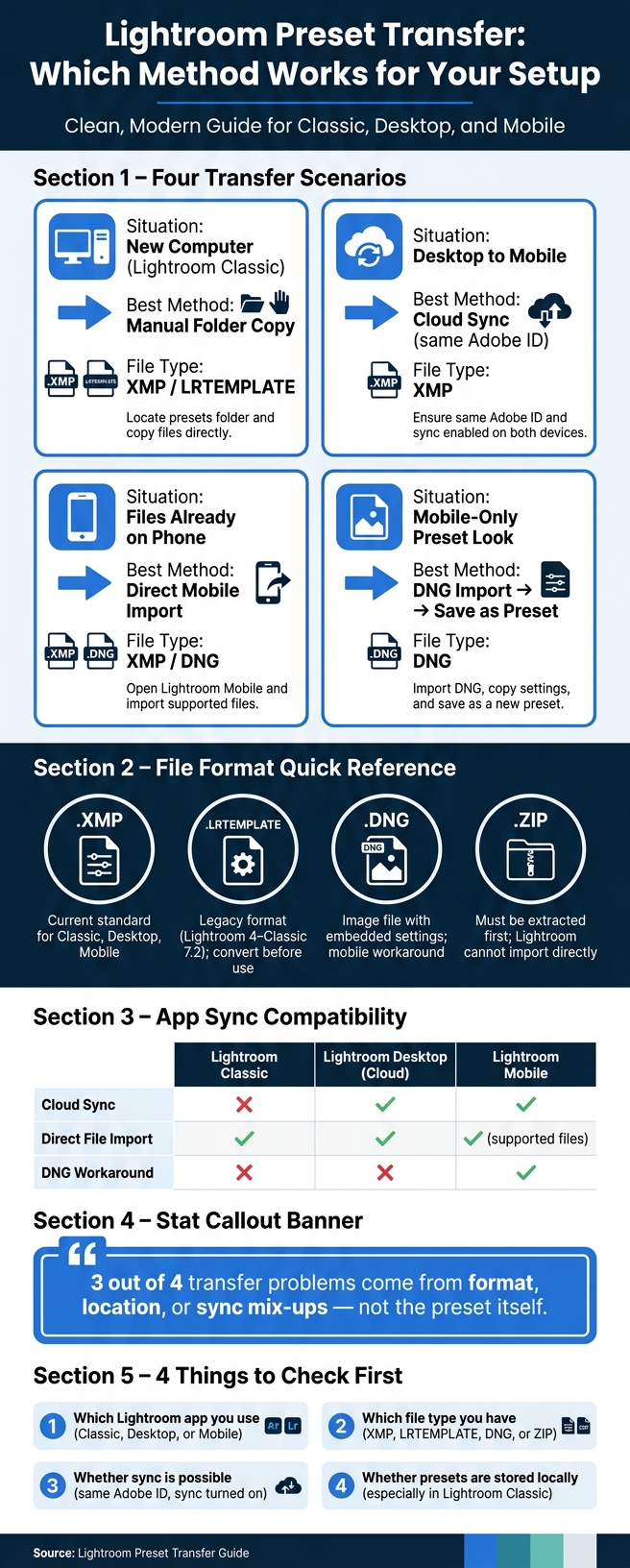
About 3 out of 4 transfer problems in guides like this come from format, location, or sync mix-ups - not from the preset itself. So the fastest fix is usually to match the file type to the app first.
| Situation | Best method | Main file type |
|---|---|---|
| New computer with Lightroom Classic | Manual folder copy | XMP / older LRTEMPLATE |
| Lightroom desktop to mobile | Cloud sync | XMP |
| Files already on phone | Direct mobile import | XMP / DNG |
| Mobile-only preset look | DNG import, then save preset | DNG |
Bottom line: if you know your app, your file type, and whether cloud sync applies, preset transfer becomes much simpler.
Lightroom Preset Transfer: Which Method Works for Your Setup
Which preset files work in each Lightroom app
Preset file formats: XMP, LRTEMPLATE, DNG, and ZIP
The file format tells you a lot about how easy the preset will be to use.
.xmp is the current standard for Lightroom Classic, Lightroom desktop (cloud), and Lightroom mobile.
.lrtemplate is the older format used by Lightroom 4, 5, 6, and Classic 7.2 or earlier. If you're using a current version of Lightroom, convert it to XMP before you move it to another device.
.dng files are image files that carry edit settings instead of acting like normal preset files. In Lightroom mobile, you import the DNG, open it, tap the three-dot menu, choose Create Preset, name it, and save it to a preset group.
.zip is just a compressed folder. Lightroom can't use a ZIP file on its own, so you need to extract it first and then import the file inside.
Once you have the right file type, the next thing to check is how that preset moves between apps: by direct import or by sync.
Lightroom Classic vs. Lightroom desktop vs. Lightroom mobile
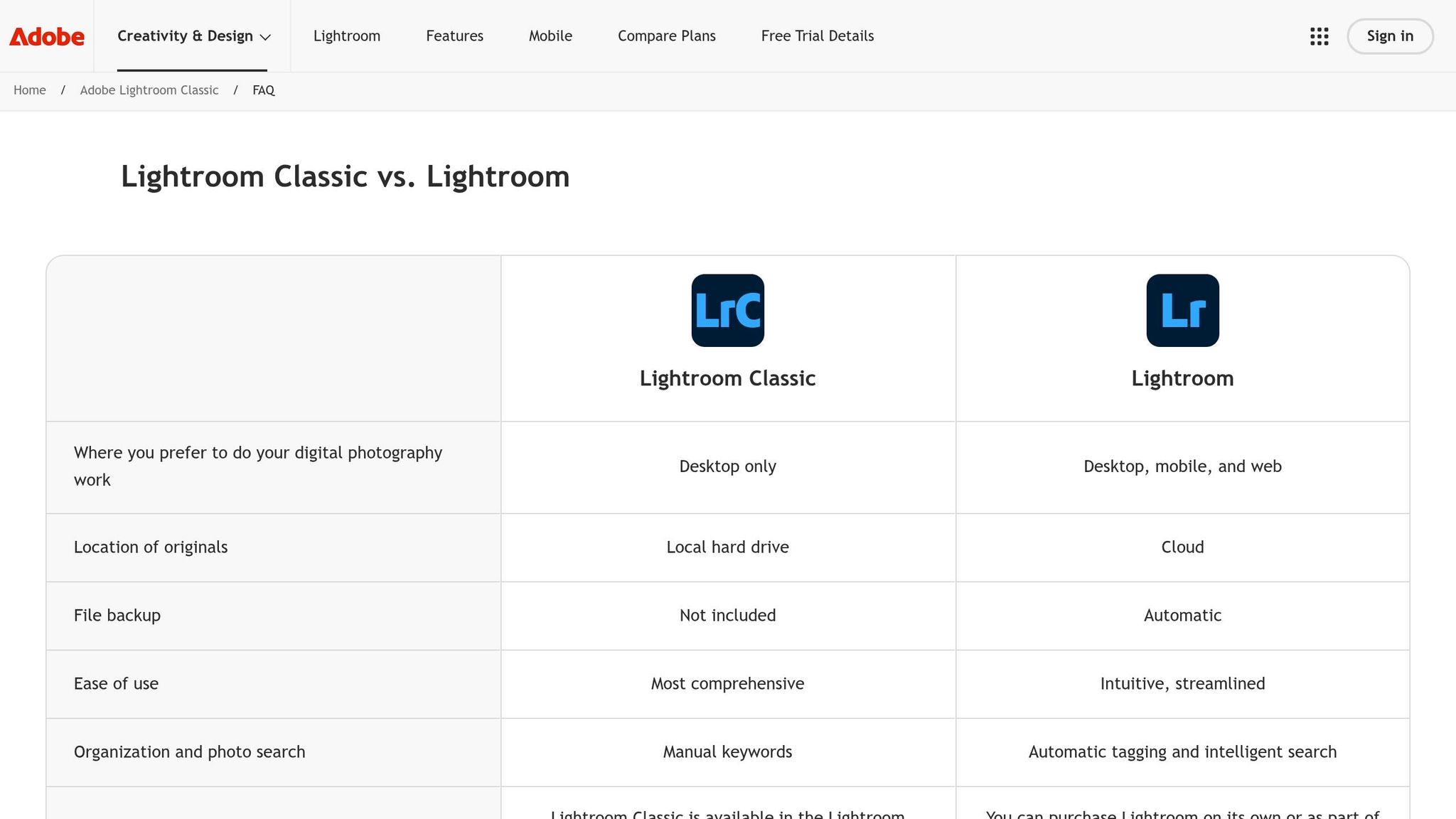
The three Lightroom apps don't handle presets the same way. That's where a lot of people get tripped up.
| Feature | Lightroom Classic | Lightroom Desktop (cloud) | Lightroom Mobile |
|---|---|---|---|
| Primary preset format | XMP; lrtemplate in older versions | XMP | XMP |
| Transfer method | Local preset folders and manual file management | Cloud sync | Cloud sync |
| Direct file import | Yes | Yes | Yes, for supported files |
| DNG workaround | No | No | Yes |
Lightroom Classic is built more around local files and manual folder management. Lightroom desktop (cloud) and Lightroom mobile lean on Adobe's cloud sync, which makes moving presets between those two apps much easier.
How sync works across devices on the same Adobe account

Lightroom desktop (cloud) shares presets across devices tied to the same Adobe account, but Lightroom Classic does not. If you import or create a preset in Lightroom desktop (cloud), it syncs to Lightroom mobile on its own as long as you're signed in with the same Adobe ID and sync is turned on.
If you import a preset into Lightroom Classic, it does not sync to mobile. Presets added only to Classic stay on that machine unless you also add them to Lightroom desktop (cloud).
Presets made in Lightroom mobile can show up in Lightroom desktop (cloud) after sync. From there, you can export them as XMP and use them in Lightroom Classic.
If you're moving presets to a new computer, the next step is putting them in Lightroom's preset folder.
sbb-itb-b27063b
How to Import Presets into Lightroom Mobile | DNG & XMP
How to move presets to a new computer
For Lightroom Classic, the way to move presets to a new computer is simple: copy your local preset folder from the old machine to the new one. This section covers the manual transfer path only, not cloud sync. The next step is finding the exact preset folder on the old computer.
Where Lightroom Classic stores preset folders on Windows and macOS
Start on the old computer. Lightroom Classic uses different default preset paths on Windows and macOS:
- Windows:
C:\Users\[username]\AppData\Roaming\Adobe\Lightroom\Develop Presets - macOS:
~/Library/Application Support/Adobe/Lightroom/Develop Presets
Both folders are hidden by default. On Windows, enter %appdata% in File Explorer. On macOS, open Finder and choose Go > Library.
If you want the fast route, right-click a preset and choose Show in Explorer/Finder. Lightroom will open the exact folder for you.
There’s one detail that trips people up: Lightroom Classic can store presets in two different places. If Store presets with this catalog is turned on, your presets live inside the catalog’s Lightroom Settings folder instead of the default preset path.
Copy, paste, relaunch, and verify
Once you’ve found the right folder, close Lightroom Classic on the old computer so no files stay locked. Then copy the preset folders to a USB drive, external drive, or cloud folder.
On the new computer, install Lightroom Classic and open it once so it creates its default folder structure. Then close it. After that, open the matching preset folder by using the same path or the Preferences > Presets > Show Lightroom Develop Presets shortcut, and paste in the folders you copied.
After you relaunch Lightroom Classic, open the Develop module and check the Presets panel. Apply a few presets to a test photo and make sure the edits load as expected.
Also, move any brush or local adjustment presets on their own.
Brush and local adjustment presets are stored separately
Brush and local adjustment presets are not stored in the same place as develop presets. To find them, go to Preferences > Presets > Show All Other Lightroom Presets. Lightroom will open the folder you need. Inside it, look for Local Adjustment Presets.
Copy that folder the same way you copied your develop presets, then paste it into the matching location on the new computer. After relaunching Lightroom Classic, open a local adjustment tool and check the Effect dropdown to make sure your custom presets appear there.
The Ultimate Lightroom Preset Bundle – 1,291 Presets + Video LUTs
$89.00
$1,662.00
The Ultimate Presets.io Bundle combines The Master Preset Bundle Volume I and The Master Preset Bundle Volume II into one complete collection, giving you every editing style you need in a single download. Save $37 vs. Volume I and II… continue reading

How to transfer presets to Lightroom mobile
You can move presets into Lightroom mobile in three simple ways: cloud sync, direct import, or a DNG fallback. The best option depends on where the preset lives right now.
If you've already added trending Lightroom presets to your desktop app, sync is usually the fastest path. If the file is sitting on your phone or tablet, just import it straight into the app.
Sync presets from desktop to mobile using the cloud
If your presets are on desktop, import them into Lightroom first. Then Adobe Cloud will sync them to Lightroom mobile as long as you're signed in with the same Adobe ID. Keep sync turned on, and the presets should show up on mobile in the same preset group.
If cloud sync isn't an option, skip that route and use direct import instead.
Import preset files directly on iPhone or Android
If the preset files are already saved on your phone or tablet, you can bring them into Lightroom mobile directly. Open a photo, tap Presets, then choose Import Presets from the menu.
Before you do that, unzip the download if needed. Then save the XMP or DNG files somewhere Lightroom mobile can reach.
If all you have is a sample photo, the DNG route is the one to use next.
Use a DNG file to move a mobile-only look
The DNG method works well when you only have a sample image or a look made on another phone.
Import the DNG into Lightroom mobile and open it. Then tap Presets and choose Create Preset or Create from current settings, depending on your app version. When you save the preset, include settings such as tone, color, curve, HSL, and color grading. Leave out local adjustments and crop if you want the preset to work better across different photos.
Common transfer problems and key takeaways
Why presets do not show up after import or sync
When a transfer fails, check the file type first and look at the Lightroom app you used.
Most missing preset issues come down to three things: the file is still zipped, the preset was imported into the wrong Lightroom app, or sync hasn’t finished. Lightroom won’t import ZIP files and may skip them. So the first move is simple: unzip the folder, then import the actual .xmp, .dng, or .lrtemplate files.
App mix-ups are also common. If you import a preset into Lightroom Classic, it won’t show up in Lightroom mobile unless sync is turned on and working. If sync seems stuck, make sure you’re signed in with the same Adobe ID, check the sync status, and then restart Lightroom.
Presets.io installation guides walk through unzipping, folder placement, and DNG import.
If the file imported fine but the preset still looks wrong, that usually points to a version issue.
How to handle version mismatch issues
Lightroom Classic can convert older .lrtemplate presets into .xmp files, but some older settings don’t always carry over cleanly. That’s where things can get a little messy. If the converted preset looks off, save a fresh .xmp version from the converted preset.
There’s also a hard version limit to watch for: Lightroom Classic 8.2 and earlier can’t import .xmp presets. In that case, updating Lightroom is the simplest fix. And if presets seem to vanish after import, turn on Show Partially Compatible Develop Presets in Lightroom Classic Preferences.
Conclusion: The key rules to remember
A few rules solve most transfer problems:
- Check the file type first: use .xmp for desktop, .dng for mobile, and unzip ZIP files before import.
- Use cloud sync when moving presets between Lightroom desktop and mobile under the same Adobe account.
- Use manual folder copy when moving Lightroom Classic presets to a new computer.
- Use DNG as a fallback for mobile-to-mobile transfer when cloud sync isn’t an option.
After the transfer, try the Lightroom preset on a few photos. If the look changed, resave it.
FAQs
Can I transfer Lightroom presets to a new computer?
Yes. If you use Lightroom Classic, you can transfer your presets by copying the preset folders from your old computer to the new one. The exact folder location depends on whether you're using Windows or macOS.
Can I transfer Lightroom presets from desktop to mobile?
Yes. Lightroom desktop and Lightroom mobile can sync presets through Adobe Cloud when you're signed in with the same Adobe ID and sync is enabled. Presets imported only into Lightroom Classic do not automatically sync to mobile.
Why are my Lightroom presets not showing up after I import them?
The most common causes are that the file is still zipped, the preset was imported into the wrong Lightroom app, or cloud sync hasn't finished. Make sure your files are unzipped and that you're importing the correct XMP, DNG, or LRTEMPLATE file for your Lightroom version.