


Table of Contents
- How to Rename Presets in Lightroom Mobile
- Create Presets in Lightroom Mobile | Adobe Lightroom
- How to Rename a Preset in Lightroom Mobile
- How to Keep Your Preset Library Organized
- Using Imported Presets from Presets.io in Lightroom Mobile
- Conclusion: Keep Preset Names Simple, Specific, and Easy to Scan
- FAQs
How to Rename Presets in Lightroom Mobile
Yes - you can rename presets in Lightroom Mobile, but only the ones in the Yours tab. You can’t rename Adobe presets in the app, and you can’t rename preset groups on mobile.
Here’s the short version:
- User presets: can be renamed
- Adobe presets: can’t be renamed in mobile
- Preset groups: can’t be renamed in mobile
- iPhone, iPad, and Android: use the three-dot menu
- Duplicate names: Lightroom will ask you to choose a different one
- Changes sync: preset name updates appear on devices using the same Adobe account
That means 1 out of 2 preset types can be renamed in Lightroom Mobile: your own presets. If you want to change the name of a built-in Adobe preset, I’d save it as a new preset first, then rename that copy.
A clean preset list makes editing easier on a small screen. Names like Warm Contrast, P_Portrait Soft, or 01_B&W Matte are easier to scan than vague labels. Short, specific names win.
If you imported presets to iPhone or Android, the rule stays the same: once they appear under Yours, you can rename them without changing the look. And if your library is getting crowded, I’d pair better names with deleting duplicates and sorting trending Lightroom presets into groups.
Below, I’d walk through the steps, the limits, and the naming tips that help keep your preset panel easy to use.
Create Presets in Lightroom Mobile | Adobe Lightroom

sbb-itb-b27063b
How to Rename a Preset in Lightroom Mobile
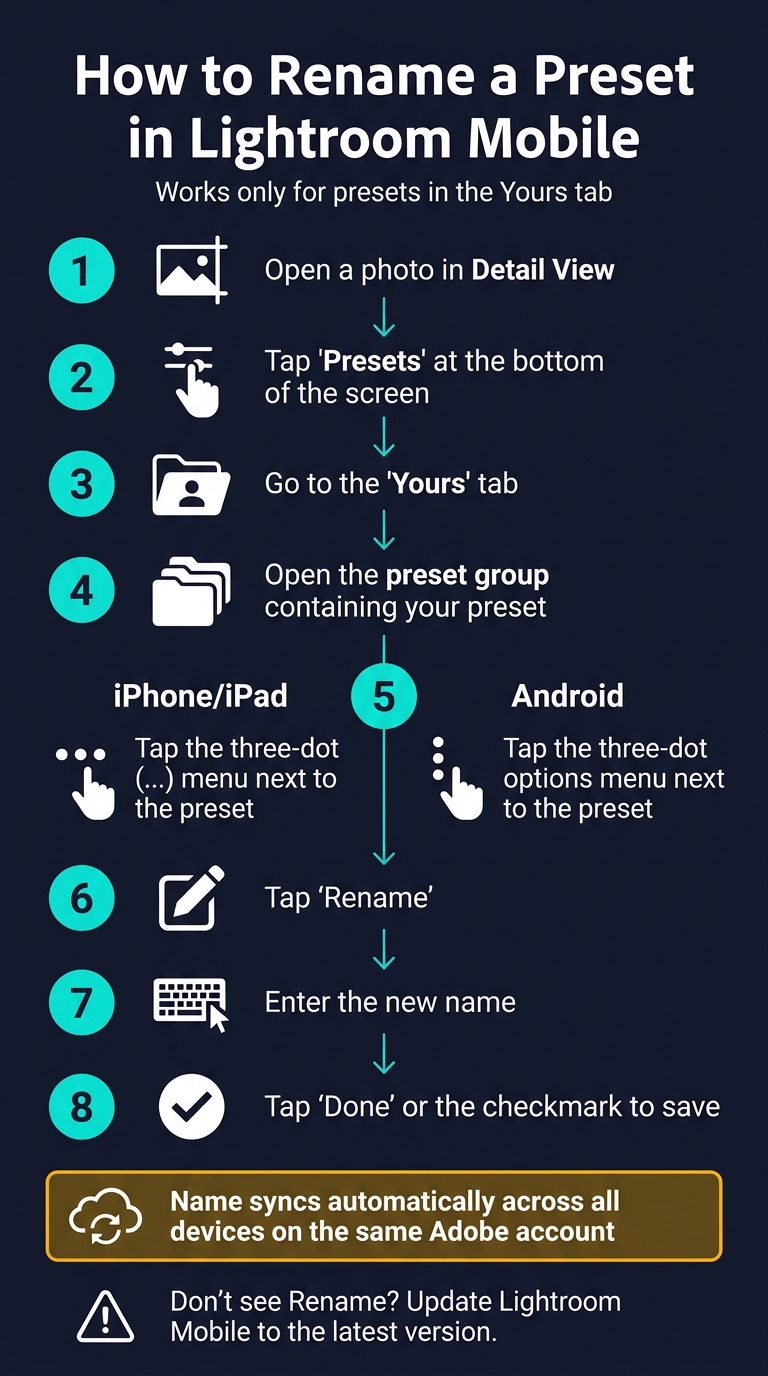
How to Rename a Preset in Lightroom Mobile (Step-by-Step)
Look for the three-dot (...) menu next to the preset name. The label and icon spot can vary a bit depending on your app version.
Rename a Preset on iPhone or iPad
With the preset open, here’s what to do:
- Open a photo in Detail view, then tap Presets at the bottom of the screen.
- Go to the Yours tab and open the preset group that has the preset you want to edit.
- Tap the three-dot (...) menu, tap Rename, enter the new name, and tap Done or the checkmark.
The new name syncs across devices signed into the same Adobe Creative Cloud account.
Rename a Preset on Android
Open a photo in Detail view, tap Presets in the Edit panel, and switch to the Yours tab. Then open the right preset group, tap the three-dot options menu next to the preset, choose Rename, type the new name, and tap Done or the checkmark to save.
If you don’t see Rename, update Lightroom Mobile to the latest version.
What to Do When Lightroom Flags a Duplicate Name
If Lightroom flags a duplicate name, tap Rename and enter a different name. It helps to use specific names like "Warm Contrast" or "Soft Light" so you don’t run into duplicates and can find new Lightroom presets faster later.
How to Keep Your Preset Library Organized
After you rename your presets, the next step is getting them into a setup that’s easy to scan. Renaming helps, but naming plus grouping is what saves time in Lightroom. When your preset panel is clean, you scroll less and edit faster.
Use Clear Naming Patterns for Fast Searching
Lightroom sorts presets alphabetically, so prefixes decide what stays together. That gives you a simple way to control the list.
Names should tell you what the preset does right away. Think Warm Contrast, Soft Haze, or Cool Shadows. You shouldn’t have to click around and guess.
Prefixes also help keep similar looks side by side. For example:
- B&W_ for black-and-white presets
- P_ for portraits
- Travel_ for travel looks
If you want your go-to presets near the top, add a number at the front, like 01_ or 02_.
Start with a naming pattern first. Then split your larger style types into groups.
Group Similar Presets Together
Preset groups work like folders. They let you sort styles by category, so you’re not digging through one long mixed list every time you edit.
Common group names include Portrait, Travel, Social Media, and Moody. You can rename groups in Lightroom desktop and let that change sync across your devices.
Remove or Update Redundant Presets
Preset libraries tend to get messy over time. It happens little by little: a test preset here, a duplicate there, and suddenly the whole panel feels cluttered.
If two presets give you almost the same result, keep the better one and delete the other. If a preset name is vague, update it so the look is clear. You can also use the three-dot menu to remove groups you no longer use.
Cutting old or duplicate presets keeps the list shorter and makes the presets you use most much easier to spot.
Using Imported Presets from Presets.io in Lightroom Mobile

The Ultimate Lightroom Preset Bundle – 1,291 Presets + Video LUTs
$89.00
$1,662.00
The Ultimate Presets.io Bundle combines The Master Preset Bundle Volume I and The Master Preset Bundle Volume II into one complete collection, giving you every editing style you need in a single download. Save $37 vs. Volume I and II… continue reading

Presets.io offers Lightroom Mobile presets that you can import, rename, and sort in the Presets panel. After import, user presets show up in the Yours tab. From there, you can open each preset’s menu and rename it.
Imported presets follow the same naming rules as other user presets. But in practice, they need clearer labels. Once the original file name disappears, a vague preset name can turn into a mess fast.
Rename Imported Presets Without Losing the Look
Your preset name should keep two things: the style and the use case. A simple way to do that is to keep part of the original style name, then add a short note like IG Reel, Travel, or Golden Hour.
For example, Cinematic 01 – Night Street or Vintage – Outdoor Portrait tells you what the preset looks like and what kind of photo it fits best.
Name New Presets Well From the Start
If you’re saving a new preset from an imported DNG file, give it a clear name in the New Preset window right away. It also helps to place it in a specific group instead of leaving it in User Presets.
For example, Film Look – Presets.io is much easier to sort later than a vague group name.
Conclusion: Keep Preset Names Simple, Specific, and Easy to Scan
You can rename only user presets from the three-dot menu in the Presets panel. If Lightroom flags a duplicate name, just make it a bit more specific with a short style note or a version number.
Preset groups work differently. To rename groups, you still need Lightroom desktop, and those changes will sync back to mobile.
Once your groups are synced, clean naming helps the whole library feel easier to scan. Short, descriptive names like "A6 Film" are easier to read on a small screen. And when your names are specific and your groups make sense, finding the right preset takes less effort.
FAQs
Why can’t I rename some presets in Lightroom Mobile?
Some preset groups in Lightroom Mobile can't be renamed because the app blocks edits to metadata for imported preset groups.
You can still organize your own presets in Lightroom Mobile. But there’s no built-in way to rename those groups in the app itself.
If you want to rename a preset group, you'll need to use Lightroom desktop.
Will renamed presets sync to your other devices?
It comes down to how you work.
In Lightroom CC, renamed presets usually sync through Adobe Cloud. That helps keep your preset library in sync across your phone, tablet, and computer.
In Lightroom Classic, preset management is often more hands-on. You’ll usually need to move and organize presets yourself, since folder names and folder structure don’t always sync cleanly. It also helps to check that cloud sync is turned on and that you’re signed in with the same Adobe account on each device.
How should I name presets to find them faster?
Use clear, descriptive names that match the look or job of the preset, like "Warm Sunset" or "Portrait Natural."
To keep things organized, stick to one naming pattern, include the main traits, add a two-digit version number for variations, and use numbered prefixes like "01_Portrait_Natural" so your most-used presets show up first.