

Table of Contents
Lightroom Preset Naming Checklist
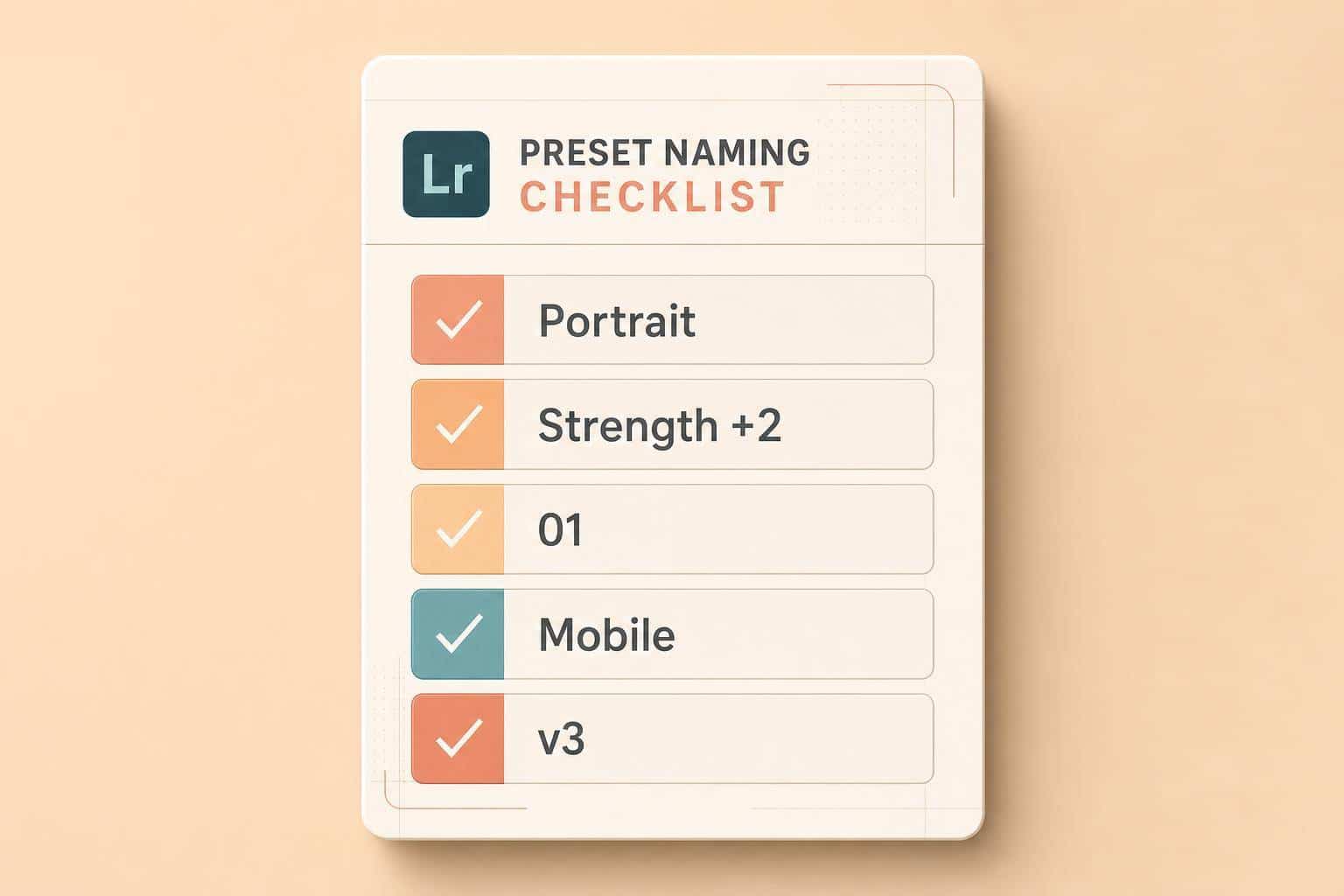
Most Lightroom preset naming problems come down to 5 checks: genre, strength, sort order, device tag, and version format. If I can read a preset name once and know what it’s for, how strong it is, where it works, and which file is latest, the name is doing its job.
Here’s the short version:
- State the use case: add the subject, scene, or look
- Use one strength scale: like Soft / Medium / Strong
- Plan the sort order: use
01,02,03if order matters - Add the device tag:
Desktop,Mobile, orAll Devices - Keep versioning the same: use
v1,v1.1,v2or one date format only
A plain name beats a vague one every time. For example, “Portrait – Studio – Soft Glow – Desktop v1” tells me far more than “Preset 3”. That matters whether I’m naming 10 presets for myself or 100 files for a paid pack.
A few fast checks help:
- Can a new user tell what the preset is for in 2 seconds?
- Do all similar presets use the same label pattern?
- Do names sort in the order I want insideLightroom?
- Are device and version tags always in the same spot?
- Are there any duplicates or near-matches?
Good naming cuts down on guesswork. And with preset packs often including multiple looks, strength options, and platform files, even a small naming problem can multiply fast.
This checklist is a simple pre-publish pass I’d use to make sure every preset name is clear, consistent, and easy to scan.
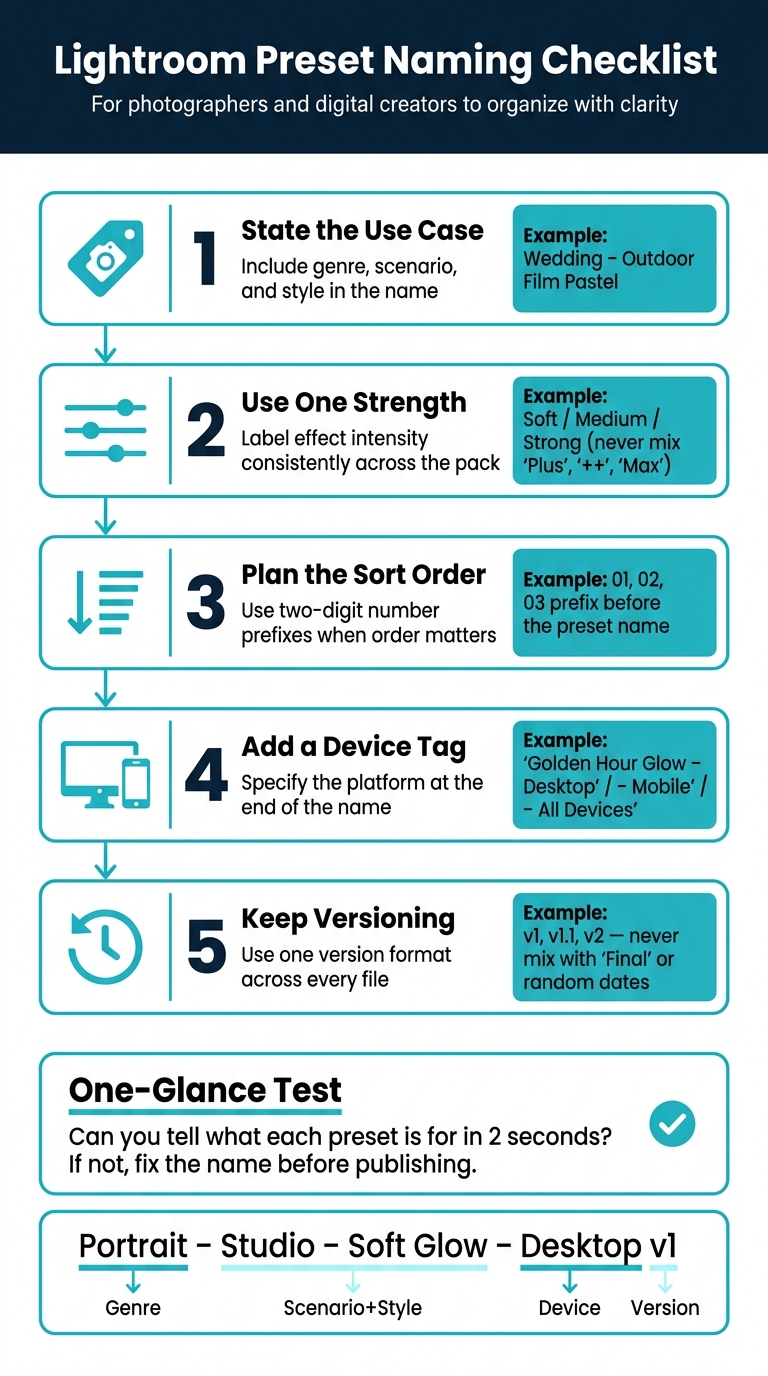
Lightroom Preset Naming Checklist: 5 Key Rules at a Glance
How Do You Name A Custom Lightroom Preset?
sbb-itb-b27063b
Checklist item 1: Confirm genre and use case
Start with the preset’s subject and use case. First, make sure the name tells people what the preset is for. A descriptive name helps users understand it without even opening it. If the name skips the genre and scenario, the user has to click in and guess.
Before you move on, run through this quick check:
- □ Does it include a genre or subject? Examples: Portrait, Wedding, Travel, Landscape, Street, Food, Real Estate.
- □ Does it include a scenario or environment? Examples: Indoor, Studio, Golden Hour, Overcast, Night, Low Light.
- □ Does it include a style or mood? Examples: Cinematic, Vintage, Film, Moody, Bright & Airy, Black & White.
- □ Would a new user know what this preset is for just by reading the name?
Add a clear subject or shooting scenario
Use one naming pattern and keep it consistent. The format [Genre] – [Scenario] [Style] is short and easy to scan. Wedding – Outdoor Film Pastel tells you the subject, the setting, and the look in four words. Travel – Urban Night Neon does the same job.
Now compare those to Cool Look or Magic. They sound nice, but they don’t tell the user when to use the preset or what kind of image it fits. That’s where confusion starts.
Stick with the same style term across the whole pack. Don’t switch between Moody and Dark & Moody if they refer to the same look. Pick one label and use it every time.
If the name doesn’t make sense at a glance, add the missing genre, scenario, or style term.
Next, check that strength and sorting use the same labels across the full pack.
Checklist item 2: Verify strength, order, and sorting
Now that the genre is set, the next job is simple: make the strength clear and keep the pack in a clean A–Z order in Lightroom.
Mark effect strength in a consistent way
Strength labels should make it obvious whether a preset gives a light touch or a heavier look. If one preset says "Plus", another says "++", and another says "Max", the pack starts to feel messy fast. Those labels don’t read like a clear scale.
A simple scale that works well is Soft / Medium / Strong.
Before you move on, do a quick pass:
- □ Does every variant of the same look use the same strength label? For example, Cinematic – Soft, Cinematic – Medium, Cinematic – Strong - not Cinematic – Soft, Cinematic Plus, Cinematic Max
- □ Is the strength label the last part of the name? It should come after the look name, not before it.
- □ Are vague labels like "Pro", "Extra", or "++" missing from strength labels? Save those for pack tiers, not effect strength.
Once your strength scale is set, check how the names sort.
Use naming that supports folder order
After the strength label, build the sort order into the name itself.
Lightroom sorts presets alphabetically by default. So if you want base presets to show up before more stylized looks, you need to plan for that in the naming.
Use two-digit number prefixes like 01, 02, and 03 when order matters. For smaller packs, you can skip prefixes if it’s easier for people to scan by look instead of workflow.
After renaming, sort the pack in Lightroom, then move to device type and version labels. This is especially important if you plan to import presets to Lightroom on iPhone or other mobile devices.
The Ultimate Presets.IO Bundle
$89.00
$1,662.00
The Ultimate Presets.io Bundle combines The Master Preset Bundle Volume I and The Master Preset Bundle Volume II into one complete collection, giving you every editing style you need in a single download. Save $37 vs. Volume I and II… continue reading

Checklist item 3: Label device type and version format
Once the order is locked in, the next job is simple: label the device type and version. These two labels help you avoid file mix-ups and cut down on update confusion. People can see, at a glance, what platform a preset supports and which release they’re looking at.
Show whether the preset is for desktop, mobile, or both
Every preset in the pack should include a clear device tag. Put that tag at the end of the name:
Golden Hour Glow – DesktopGolden Hour Glow – MobileGolden Hour Glow – All Devices
Use Lightroom Classic when a preset relies on Classic-only features or profiles. If install steps or supported features change by platform, labels like Lightroom Mobile iOS or [Lightroom Mobile Android](https://presets.io/pages/how-to-import-presets-to-lightroom-on-mobile-android) can make things clearer. For general packs, Mobile works fine.
The main thing is consistency. Use the same device tag format across the entire pack. This is standard practice for professional collections like The Master Preset Bundle.
- □ Does every preset have a device tag?
- □ Are all variants of the same look using the same base name, with only the device suffix changing?
- □ Is the device tag placed before any version number?
Use one version format across the pack
Pick one version format and stick with it on every file. Short numeric versions at the end of the name are usually the cleanest option: v1, v2, or v2.1. Use whole numbers for major changes and decimals for smaller updates.
Golden Hour Glow – Desktop v1Golden Hour Glow – Desktop v1.1Golden Hour Glow – Desktop v2
If you use dates, keep one file-safe format across the pack. Use YYYY-MM-DD in filenames. Save MM/DD/YYYY for product pages or changelogs.
That way, filenames stay neat, sortable, and easy to scan.
- □ Is the versioning format the same across every preset in the pack - with no mix of
v1,Final, or random dates? - □ If dates are used, does every file follow one file-safe format like
YYYY-MM-DD? - □ Does the version tag sit at the very end of the name?
Final review: One last naming pass before publishing
Check the full set for clarity and consistency
Run the same naming rules across the entire pack. Before you save or publish, scan the full preset list in one pass. This is your last check for genre, strength, order, device, version, and duplicates.
Ask yourself:
- Does each name clearly state the genre?
- Is strength labeled the same way across every preset?
- Do all names use the same element order?
- Are there any duplicate or near-duplicate names like
Moody 1andMoody Ithat might confuse buyers? - Would a new user understand each preset at a glance?
If everything passes, the pack is ready. You can then list it on a preset market for photographers. Use the one-glance test: can you tell what each preset is right away? If not, fix the weak names before publishing.
FAQs
What’s the best preset naming format?
The best naming format is clear, descriptive, and consistent so you can spot a style right away. A simple trick is to use numbered prefixes like 01 or 02 so your most-used presets stay at the top.
Then add a name that tells you what the preset does, like Cinematic_Teal_01 or Portrait_Warm_Matte_03. You can also add intensity markers like ++ for a stronger look or - for a softer one.
Should I use numbers in preset names?
Yes. Numbers can help you control the order your presets appear in, so adding a number at the start can keep your most-used presets at the top of the list.
A two-digit version number at the end can also help you track preset variations or updates over time.
How should I label mobile and desktop presets?
Use clear preset names that show both the look and the main trait, like Cinematic_Teal_01. Add a two-digit version number for updates, and use numbered prefixes such as 01_Portrait to keep your go-to presets near the top.
Lightroom sorts folders alphabetically, so prefixes and symbols like @ or * can help you keep the same setup across desktop and mobile. On mobile, DNG works well if you’re not using Creative Cloud. XMP is the current standard for syncing across devices.