
Table of Contents
XMP vs LRTemplate: Lightroom Preset Formats Explained
XMP vs LRTemplate: Which Lightroom Preset Format Should You Use?
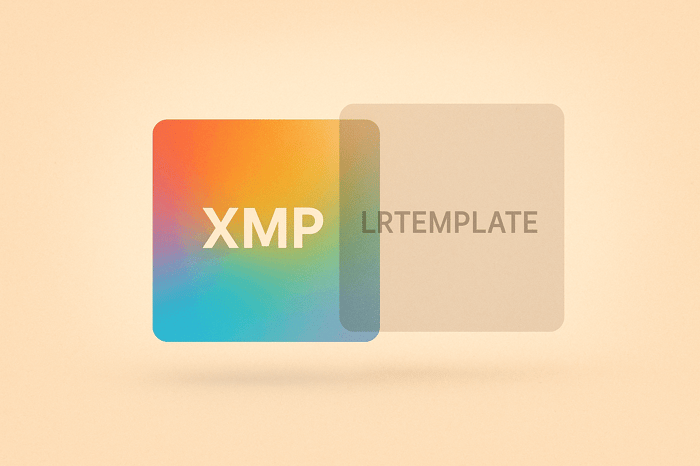
If you're deciding between XMP and LRTemplate formats for Lightroom presets, here's what you need to know:
- XMP is the modern standard introduced in 2018, supporting advanced features like AI tools, LUTs, adjustable intensity, and mobile syncing. It's ideal for Lightroom CC and Classic CC 7.3+.
- LRTemplate is the older format designed for LR 4–6 and early Classic CC versions. It lacks support for modern features and mobile workflows.
Quick Facts:
- XMP offers cross-platform compatibility with other Adobe tools and software like Photoshop and Premiere.
- LRTemplate is limited to desktop use and doesn't support features like profiles, masking, or color grading.
- Lightroom automatically converts LRTemplate files to XMP in newer versions, but converted presets retain only the original adjustments.
For those using newer LR versions or mobile editing, XMP is the better choice. However, LRTemplate remains useful for older software. Converting LRTemplate presets is easy, ensuring you can still use them in modern workflows.
Summary Table:
| Feature | XMP | LRTemplate |
|---|---|---|
| Lightroom Support | CC 2018+, Classic 7.3+ | Lightroom 4–6, Classic ≤7.2 |
| Mobile Sync | Yes | No |
| Adjustable Intensity | Yes (if supported) | No |
| Profiles/LUTs | Yes | No |
| Cross-Platform | Yes | No |
XMP presets are designed for today's editing needs, while LRTemplate works for legacy setups. Choose based on your Lightroom version and workflow.
LRTemplate Format Explained
What is LRTemplate?
The .lrtemplate format was Adobe's original preset file type for Lightroom, used up until April 2018. These files store adjustment settings that LR applies to photos, such as changes to exposure, color, white balance, and tone. Essentially, they act as a "recipe" for editing, enabling photographers to apply a specific look to their images with just one click.
LRTemplate files were designed exclusively for older versions of LR, including Lightroom 4, 5, 6, and early versions of Classic CC (prior to 2018). These presets were intended for desktop workflows only and were stored in Lightroom's Develop Presets folder. By installing an LRTemplate preset, photographers could quickly transform raw images to match the style envisioned by the preset creator.
Now, let’s dive into the limitations of LRTemplate files when compared to more modern editing formats.
LRTemplate Features and Limits
While LRTemplate presets were groundbreaking for their time, they come with several limitations, especially when stacked against today’s advanced editing tools. These presets are limited to Lightroom's basic develop settings, which means they cannot utilize modern features like LR Profiles, LUTs (Lookup Tables), or AI-driven tools such as masking.
Another drawback is the lack of adjustable intensity. Unlike modern presets, LRTemplate files don’t allow you to fine-tune the strength of the preset itself. If you want to make adjustments, you’ll need to manually tweak individual settings or rely on third-party plugins like The Fader, which adds extra steps and slows down your editing process.
Additionally, modern color grading tools are absent in LRTemplate files. Features like color wheels, advanced tone curves, and profile-based adjustments simply weren’t part of LR when this format was in use. As a result, users are restricted to the basic adjustment panel tools available in older Lightroom versions.
Perhaps the most glaring limitation is the lack of mobile compatibility. Since LRTemplate presets were developed before the rise of LR Mobile and cloud-based workflows, they can’t sync across devices or be used on smartphones and tablets, making them unsuitable for today’s mobile-first editing environments.
LRTemplate Compatibility and Conversion
Despite these limitations, there’s a way to bring LRTemplate files into the modern era: converting them to the XMP format. Starting with Lightroom Classic CC 7.3, Adobe introduced an automatic conversion process for LRTemplate files. Once converted, the presets are saved in the XMP format, which unlocks compatibility with newer LR features - up to the extent supported by the original adjustments.
However, it’s important to note that the conversion process has its own set of restrictions. Converted presets retain only the adjustments that were part of the original LRTemplate file. Any modern features, such as profiles, AI tools, or advanced color grading, won’t magically appear in the converted preset.
Interestingly, many preset creators still include LRTemplate files alongside their XMP versions to accommodate users with older versions of LR. For instance, Presets.io’s Master Preset Bundle offers "721 Presets For Desktop (xmp - lrtemplate files)" to ensure compatibility across various Lightroom versions. While the XMP files cater to modern software, the LRTemplate versions remain a lifeline for users who haven’t upgraded.
The automatic conversion feature ensures that your old LRTemplate presets aren’t left behind when you update LR. However, while conversion preserves the original edits, it doesn’t add new capabilities to the presets, keeping them tied to the limitations of their time.
XMP Format Explained
What is XMP?
XMP (Extensible Metadata Platform) became Adobe's standard preset format in April 2018, replacing the older LRTemplate system with the release of LR CC and Classic CC 7.3. Unlike the LRTemplate files, which were tied to older desktop-only workflows, XMP is an open standard that stores editing instructions as metadata. This makes it compatible with a broader range of software beyond just Lightroom.
This transition marked a significant step forward in how presets function. While LRTemplate files were essentially fixed recipes usable only in older LR versions, XMP files operate as flexible blueprints that adapt across different software environments. The format supports all process versions from 1 through 6, ensuring compatibility with various Lightroom iterations and extending its usability to other Adobe applications like Camera Raw.
One of XMP's standout strengths is its cross-platform compatibility. These files work effortlessly with tools like Adobe Premiere, Final Cut X, DaVinci Resolve, Photoshop, Luminar, Filmora, and other software that supports XMP files and 3D LUTs. This versatility has made XMP the preferred format for modern editing workflows spanning multiple applications.
XMP Features and Capabilities
XMP addresses the limitations of the older LRTemplate format, offering features that go far beyond its predecessor. For instance, XMP supports Lightroom Profiles and LUTs (Lookup Tables), enabling advanced color grading techniques that were previously unattainable. With XMP, you can apply nuanced adjustments, such as selective desaturation of midtone greens - something LRTemplate presets couldn’t handle.
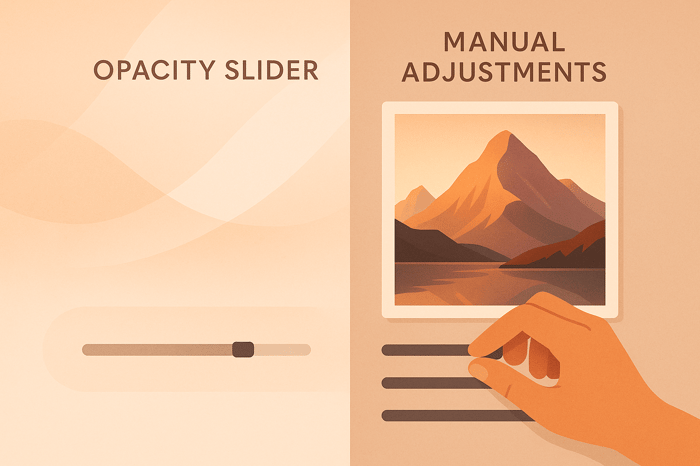
One of the standout workflow improvements is the adjustable amount/opacity feature. Many XMP presets come with a slider that lets you control the preset's intensity during application, removing the need to tweak individual settings manually. This feature simplifies editing and provides more creative flexibility. However, not all XMP presets include this functionality, so it’s wise to check product details before purchasing.
XMP presets also integrate cutting-edge AI tools and masking capabilities. These presets can include advanced adjustments powered by LR's artificial intelligence, such as sky replacement, subject selection, and intelligent masking. Additionally, XMP supports the latest color grading tools, like color wheels and advanced tone curves, which were unavailable in the LRTemplate era.
Performance can vary depending on how the XMP preset is designed. Presets using profiles and LUTs tend to render quickly, while those with complex adjustments may take longer. This makes profile-based presets especially useful for mobile editing workflows, where speed is often a priority.
These advanced features not only streamline your editing process but also set the stage for XMP's longevity in the ever-evolving world of photo editing.
Why XMP Works Better Long-Term
XMP's enhanced features go beyond just improving workflows - they also make the format a long-term solution for editing. XMP presets are designed to sync effortlessly across desktop, mobile, and web platforms, allowing for seamless editing no matter what device you’re using. This cross-device compatibility was not possible with LRTemplate presets, which were confined to desktop workflows.
Another key advantage is future-proofing. As Adobe introduces new tools and updates to Lightroom, XMP presets can adapt to incorporate these advancements. For example, preset creators can use LUTs developed in professional software like Photoshop or DaVinci Resolve and convert them into LR profiles for use within XMP presets.
For mobile editing, XMP presets built with profiles and LUTs perform exceptionally well on smartphones and tablets, rendering instantly and making them ideal for today’s mobile-first editing workflows. This speed advantage is crucial when working on multiple images or under tight deadlines.
XMP also manages backward compatibility effectively. When users upgrade from older LR versions with LRTemplate presets, the application automatically converts those files into XMP format. This ensures that original adjustments are preserved while unlocking access to newer features where applicable.
In short, XMP’s flexibility, compatibility, and ability to integrate future advancements make it an essential tool for modern photo editing workflows. Whether you’re working on a desktop, tablet, or smartphone, XMP keeps your presets relevant and adaptable.
XMP vs LRTemplate: Direct Comparison
Side-by-Side Comparison
When it comes to managing preset libraries, understanding the differences between XMP and LRTemplate formats is essential for photographers. Here's a breakdown of how these two formats stack up in key areas:
| Feature | XMP Presets | LRTemplate Presets |
|---|---|---|
| Lightroom Version Support | CC 2018+, Classic 7.3+ | LR 4–6, Classic CC ≤7.2 |
| Camera Raw Compatibility | Yes | No |
| Mobile Sync | Yes | No |
| Profile/LUT Support | Yes | No |
| Adjustable Amount/Opacity | Yes (if supported by the preset) | No (requires third-party plugins) |
| Process Version Support | 1–6 | 1–3 |
| Cross-Platform Software | Adobe Premiere, Final Cut X, DaVinci Resolve, Photoshop, Luminar, Filmora | Lightroom only |
| Automatic Format Conversion | Yes (from LRTemplate presets) | N/A |
This table highlights the primary distinctions, offering a snapshot of how these formats differ in functionality and compatibility.
One major difference lies in where these files are stored. LRTemplate files are located in Lightroom's "Develop Presets" folder, while XMP files are found in the "Settings" folder under "Camera Raw". XMP's advanced capabilities, particularly in color grading, set it apart. For example, XMP presets can use profiles and LUTs to target specific color ranges, such as desaturating midtone greens while leaving highlights and shadows unaffected - something LRTemplate presets cannot achieve with their standard adjustment tools.
Workflow and Performance Differences
For photographers working in fast-paced, mobile-first environments, the differences between XMP and LRTemplate formats can have a big impact on workflow efficiency and editing speed.
XMP presets, especially those leveraging LR Profiles and LUTs, are designed for quick processing. This makes them a great choice for high-volume editing sessions or mobile workflows where speed is a priority. That said, the rendering speed of XMP presets can vary depending on their complexity. For instance, presets with extensive adjustments or AI-based settings might process as slowly as LRTemplate presets.
Another advantage of XMP is the ability to adjust preset strength using a built-in slider. This feature allows for quick and precise edits without needing third-party tools like The Fader. In contrast, LRTemplate presets lack this functionality, requiring manual adjustments to achieve similar results.
XMP presets also offer seamless syncing across devices, making them far more versatile than LRTemplate presets, which are limited to desktop use. Furthermore, XMP's cross-platform compatibility means you can use the same preset in applications like Adobe Premiere for video editing or Luminar for alternative photo processing workflows. LRTemplate presets, on the other hand, require conversion to function outside of Lightroom.
It's worth noting that not all XMP presets include adjustable opacity. If this feature is important to you, be sure to check the preset details before purchasing or using them.

The Master Preset Bundle

$57.00
$672.00
The Master Preset Bundle Every Style. Every Platform. One Download Get 56 high-quality Presets.io collections in one complete bundle — designed to help you edit faster, stay consistent, and get professional-looking results in seconds. Get All High-Quality Preset Collections For… continue reading
sbb-itb-b27063b
Choosing and Converting Preset Formats
Which Format to Use When
The format you choose for your presets largely depends on the version of LR you're using and your specific workflow. If you're working with LR Classic CC version 7.3 or later (released in April 2018), XMP is the way to go. XMP presets come with advanced features such as AI masking, profiles, LUTs, and adjustable opacity, giving you more flexibility and creative control.
On the other hand, LRTemplate presets are designed for older versions of LR, such as Lightroom 4, 5, 6, or Classic CC versions earlier than 7.3. While these presets work well for legacy software, upgrading to a newer version unlocks tools and capabilities that aren't available in the older formats.
How to Convert LRTemplate to XMP
Converting LRTemplate presets to XMP is incredibly simple because LR automates the process for you. Here's how you can do it:
- Open LR Classic CC version 7.3 or later and head to the Develop module.
- In the Presets panel, click the "+" icon and select Import Presets.
- Locate your LRTemplate files on your computer and select them.
- Click Import, and Lightroom will automatically convert the files to XMP format.
Pro tip: Before downloading or purchasing presets, double-check their file format and compatibility with your LR version. Some older LRTemplate presets might not convert perfectly, especially if they rely on tools that have been updated or replaced in newer versions.
This built-in conversion process makes it easier than ever to access modern presets and take full advantage of the latest editing tools.
Getting Modern Presets from Presets.io
If you're looking for ready-to-use presets, Presets.io is a great resource. They offer presets in both XMP and LRTemplate formats, ensuring compatibility no matter which version of LR you're using.
For example, the Master Preset Bundle from Presets.io includes 721 desktop presets in both formats for just $49. Each collection comes with detailed installation guides, making setup a breeze - whether you're installing XMP presets for the first time or converting from LRTemplate.
Presets.io also features a wide range of styles, including aesthetic, cinematic, vintage, and film-look presets. With new options added weekly, you can keep your edits fresh and streamline your workflow with the latest tools and techniques.
How to Install Lightroom Presets (.XMP and .LRtemplate)
Summary and Main Points
For anyone using Lightroom today, understanding the difference between XMP and LRTemplate presets is crucial. XMP presets bring a host of modern features like AI masking, adjustable intensity, and mobile syncing - capabilities that LRTemplate simply can’t match. These features make XMP the go-to option for a smooth, efficient editing workflow.
But it’s not just about the features - XMP presets also offer broader compatibility. While LRTemplate presets are limited to older LR versions (4, 5, 6, and Classic CC up to 2017), XMP works across multiple professional editing platforms. This flexibility makes XMP a smart choice for photographers who rely on various tools for their work.
If you’re still using LRTemplate presets, converting them to XMP is straightforward and opens up access to new tools. When you import LRTemplate files into newer versions of LR, the software automatically converts them to XMP. However, keep in mind that some advanced features, like profiles and LUTs, are exclusive to presets natively created in XMP format. Additionally, XMP presets are optimized for faster rendering and work seamlessly on mobile devices, especially when using profiles or color grading tools.
Presets.io simplifies this transition by offering high-quality presets in both formats, ensuring compatibility across LR versions. Their Master Preset Bundle, priced at $49, includes 721 desktop presets available in both XMP and LRTemplate formats. With detailed installation guides and weekly updates, photographers can stay ahead of the curve, accessing cutting-edge editing techniques while maintaining compatibility with their preferred version of LR. For modern users, prioritizing XMP presets is a clear step toward an enhanced editing experience.
FAQs
What’s the difference between XMP and LRTemplate preset formats, and which one should I use?
The XMP format is a modern preset format widely used in Adobe Lightroom and other editing software. It’s designed to store metadata and editing adjustments, offering broad compatibility across different platforms and software versions. This makes XMP a great option for users who need flexibility and want their presets to work seamlessly across various tools.
In contrast, the LRTemplate format is an older, proprietary format created for earlier versions of Lightroom. While it provides detailed presets specifically tailored for Lightroom, its use is limited to older software versions and is not supported in the latest updates.
For those using the latest versions of Lightroom or looking for cross-platform compatibility, XMP is the way to go. However, if you’re working with an older version of Lightroom, you might still come across and use LRTemplate presets.
What happens when Lightroom automatically converts LRTemplate presets to XMP, and are there any potential issues?
When Lightroom automatically updates LRTemplate presets to the newer XMP format, it uses an internal process to ensure your presets align with the latest software versions. For the most part, this happens smoothly without user intervention.
However, there are a few things to watch out for. Certain preset features or metadata may not carry over completely, and intricate adjustments might lose some precision during the conversion. To avoid surprises, it’s wise to double-check your presets after the update to confirm they still deliver the results you’re looking for.
Why is XMP better suited for modern photo editing than LRTemplate?
XMP stands out as the go-to format for modern photo editing thanks to its universal and standardized design. It works effortlessly across various Adobe applications and devices, making it simple to sync and share presets. Plus, it ensures full compatibility with the latest Lightroom updates and features.
On the other hand, LRTemplate belongs to an older generation of Lightroom formats. Its use is restricted to earlier versions, which limits its functionality and integration with current workflows. For a more seamless and flexible editing experience, XMP is the clear winner.