
Table of Contents
- Lightroom Presets: Avoiding Data Loss in Conversion
- Converting your Lightroom presets to Capture One with a few clicks
- Common Causes of Data Loss During Preset Conversion
- How to Prevent Data Loss in Preset Conversion
- How Presets.io Simplifies Preset Management
- Conclusion: Protecting Your Presets During Conversion
- FAQs
Lightroom Presets: Avoiding Data Loss in Conversion
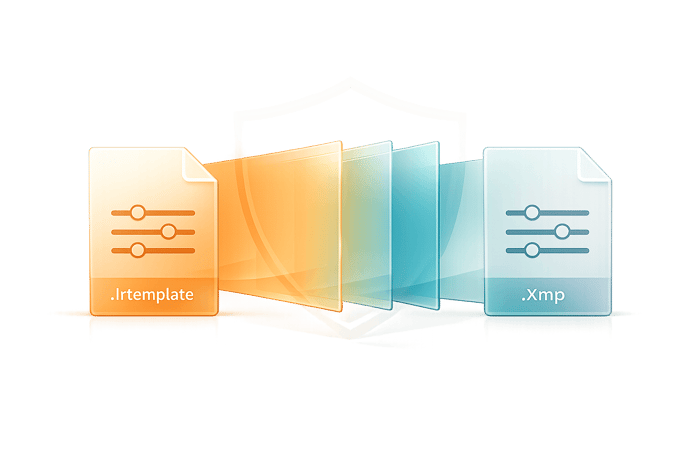
Losing your Lightroom presets during conversion can be frustrating, but it’s avoidable. Whether you're switching between Lightroom versions or sharing presets across platforms, the process requires careful handling to ensure your edits remain intact. Here’s what you need to know:
- Presets Explained: LR presets are pre-configured settings for photo edits, simplifying your workflow and maintaining a consistent style.
- Why Conversion Matters: Older
.lrtemplatepresets need to be converted to.xmpfor compatibility with modern LR versions and other tools like Adobe Camera Raw. - Common Issues: Data loss can occur due to incompatible formats, missing metadata, or manual errors during conversion.
- How to Prevent Loss:
- Use trusted tools like PresetPanda for smooth conversions.
- Always back up original presets before starting.
- Test converted presets to confirm they work as intended.
For an easier solution, platforms like Presets.io offer pre-formatted preset bundles for seamless use across various software. This eliminates the risks tied to manual conversions and keeps your workflow uninterrupted.
Converting your Lightroom presets to Capture One with a few clicks
sbb-itb-b27063b
Common Causes of Data Loss During Preset Conversion
Keeping your presets intact during conversion is essential for preserving your editing workflow with trending Lightroom presets. Knowing the main causes of data loss can help you avoid common pitfalls and ensure smooth transitions between formats.
Incompatible File Formats
When Adobe introduced Lightroom Classic v7.3 in April 2018, it replaced the older .lrtemplate format with the more universal .xmp format. This change brought compatibility challenges. Presets in the .xmp format don’t work with older Lightroom versions (LR 6 and earlier) or LR Classic versions before v7.3. Likewise, .lrtemplate files can’t be used in modern tools like LR CC, Lightroom Mobile, or Adobe Camera Raw.
The result? If a preset includes adjustments or "Creative Profiles" not supported by the target application, those settings may not transfer correctly, leaving you with an incomplete preset.
"Consider the .lrtemplate to .xmp conversion process as the 'point of no return' for your presets." - Adam Welch, Author and Photomaker
Beyond format mismatches, metadata inconsistencies can also lead to data loss.
Missing Metadata During Transfer
Metadata issues often arise because certain settings tied to specific LR versions don’t always align between .lrtemplate and .xmp formats. For example, adjustments like exposure, contrast, or highlights might not carry over, changing the preset’s final look. If the original file is damaged, the converter may fail to read all the adjustment settings, making metadata recovery impossible without a backup.
These challenges are further exacerbated by human errors in the conversion process.
Manual Conversion Errors
Manual conversions are particularly vulnerable to mistakes. Common errors include importing presets into the wrong folder, which can make them invisible in LR, or dealing with corrupted original files that halt the entire conversion. Accidental overwriting during the .lrtemplate to .xmp switch can also permanently remove backward compatibility. Even when conversions are successful, certain application-specific features may be lost, leading to subtle but noticeable changes in your presets.
How to Prevent Data Loss in Preset Conversion
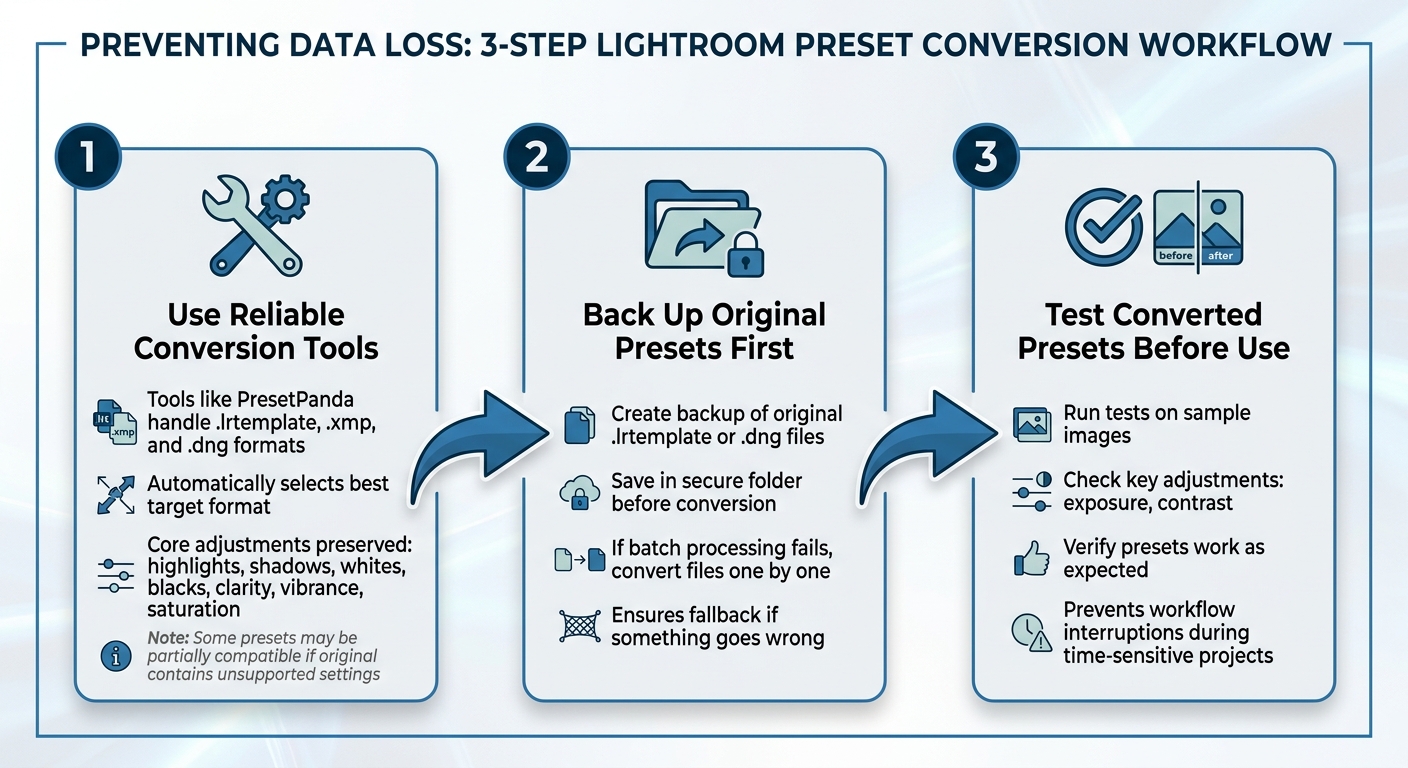
3-Step Process to Prevent Lightroom Preset Data Loss During Conversion
Avoiding data loss during preset conversion requires a mix of reliable tools, careful backups, and thorough testing of the converted files.
Use Reliable Conversion Tools
Tools like PresetPanda handle formats such as .lrtemplate, .xmp, and .dng, automatically choosing the best target format to retain essential settings. For instance, Adobe LR Desktop exports presets as .xmp files from the "Yours" or "Premium" tabs. Most core adjustments - like highlights, shadows, whites, blacks, clarity, vibrance, and saturation - are typically preserved during conversion. However, some presets may only be partially compatible if the original file contains settings that the target format doesn’t support. Even with dependable tools, having a backup ensures you're prepared for any unexpected hiccups.
Back Up Original Presets First
Always create a backup of your original .lrtemplate or .dng files by saving them in a secure folder before starting the conversion process. This ensures you have a fallback if something goes wrong. If batch processing encounters issues, try converting files one by one. Once converted, you can import presets to Lightroom on iPhone to verify they work on mobile. Without a backup, you risk losing presets you’ve spent significant time perfecting. A solid backup strategy also allows for smoother testing of converted presets.
Test Converted Presets Before Use
Run tests on sample images to check that the converted presets maintain key adjustments like exposure and contrast. Testing ensures that your presets work as expected and helps you avoid workflow interruptions, especially during time-sensitive projects. Taking this extra step can save you from potential frustration down the line. This is especially important if you plan to import presets to Lightroom on Android for on-the-go editing.
The Seasons Bundle

$39.00
$135.00
The Seasonal Bundle brings together a versatile range of Lightroom presets inspired by the shifting tones and textures of the year — from cool, muted winter scenes to rich, golden autumn light. Inside, you’ll find collections like Winter, Gingerbread, Old… continue reading
How Presets.io Simplifies Preset Management
Presets.io takes the headache out of managing presets and eliminates the risk of data loss during file conversions. Instead of worrying about compatibility issues, Presets.io provides presets that work seamlessly across all platforms. By using the modern .XMP file format, which is the universal standard for LR Classic (v7.3+), LR (Cloud), and Adobe Camera Raw, it ensures consistency across Adobe applications without the need for manual conversions. This makes it easier than ever to experiment with different styles and workflows.
Explore Diverse Preset Collections
Presets.io offers a wide range of collections tailored to Lightroom (Classic, Mobile, Cloud), Capture One, Photoshop, Luminar, and LUTs. Whether you're looking for cinematic vibes, vintage aesthetics, or a film-inspired look, these presets deliver cross-platform compatibility. This means you can apply the same style across various editing tools, ensuring your work maintains a consistent look no matter which software you prefer.
Step-by-Step Installation Made Simple
To make things even easier, Presets.io provides detailed, step-by-step guides to help you import preset folders effortlessly. These guides take the guesswork out of the process, ensuring you don’t have to manually sort files or figure out which format works with your LR version. It’s a straightforward way to keep your presets organized and ready to use.
Fresh Presets Every Week
LR updates can sometimes disrupt how presets perform, leading to issues like unexpected color shifts or contrast problems. Presets.io stays ahead of these challenges by releasing new presets weekly. These include AI-optimized styles like Cinematic, Moody, and Portrait presets, all designed to work with the latest rendering engines. They’re also fine-tuned for compatibility with LR’s newest features, such as AI-driven masking tools (Select Subject, Select Sky) and updated camera matching profiles.
As Asanka, the creator of AAAPresets, puts it:
"Think of Lightroom presets as saved instructions. When Adobe updates Lightroom, it sometimes changes how the software interprets those instructions - especially anything tied to color, tonality, masking, or detail processing".
Conclusion: Protecting Your Presets During Conversion
Converting presets doesn’t have to disrupt your editing process, but it does require some care. Since LR and Adobe Camera Raw use different file formats, presets can’t simply be transferred by dragging and dropping between the two platforms. Manual methods, like exporting DNG files, may fall short in preserving key adjustments such as Graduated Filter placements and Adjustment Brush settings.
To protect your work, start by backing up your original presets. Save copies of your native files in a dedicated folder to ensure you have a secure fallback for complex metadata and local adjustments. This step can save you a lot of headaches if something goes wrong during the conversion process.
Once the conversion is complete, take the time to compare the original and converted presets. Pay close attention to local corrections, like filters and brushes, to ensure everything has been transferred accurately. If any adjustments are missing, manually save them as new settings to avoid losing them.
Alternatively, you can simplify the process by using a platform like Presets.io, which provides presets already formatted for your software. With weekly updates and built-in cross-platform compatibility, this option allows you to skip the risks of manual conversion and stay focused on your creative work.
FAQs
Which Lightroom versions need .lrtemplate vs .xmp presets?
Lightroom Classic (older versions) works with .lrtemplate presets, whereas Lightroom CC and the latest versions of Lightroom Classic rely on .xmp presets. Be sure to verify your Lightroom version to ensure a smooth preset conversion process.
What preset settings are most likely to be lost in conversion?
Complex color grading tweaks - such as LUTs (Look-Up Tables) and detailed color profiles - are often the first to get lost when converting presets between different software or formats. These settings rarely transfer perfectly, leading to noticeable inconsistencies in your edits.
How can Presets.io help me avoid preset conversion issues?
Presets.io provides solutions to avoid preset conversion problems by offering clear guidance on compatibility across different software versions. It also includes tools designed for hassle-free conversions, minimizing the chances of data loss and keeping your edits intact throughout the process.