
Table of Contents
Lightroom Preset Recovery After Hard Drive Failure
When your hard drive fails, your Lightroom presets may vanish, disrupting your editing workflow. Here's what you need to know:
- Presets aren’t part of Lightroom’s catalog backup. They’re stored in separate folders on your hard drive.
- Recovery Options:
- Check LR settings to locate preset storage folders.
- Restore presets from external or cloud backups.
- Use scripts like ExtractPreviews.lua to recover visual edits if backups are unavailable.
- Prevention Tips:
- Regularly back up presets to an external drive or cloud storage.
- Enable LR’s catalog backup feature for added protection.
Act now to secure your presets and avoid future data loss.
Recovering Previews after a Lightroom Classic Hard Drive Failure

sbb-itb-b27063b
How Hard Drive Failures Affect Lightroom Presets
LR Classic stores presets directly on your hard drive, not in the cloud or within the catalog. These preset files are saved in specific folders depending on your operating system:
Windows:
C:\Users\[username]\AppData\Roaming\Adobe\CameraRaw\Settings
macOS:
/Users/[username]/Library/Application Support/Adobe/CameraRaw/Settings
Because of this local storage setup, presets are at risk during hardware failures or system changes.
"Presets are not stored in the catalog, but on your hard drive. Replacing the hard drive made you lose them, because apparently you did not restore the hard drive from a full backup."
- Johan Elzenga, Community Expert
Reinstalling your operating system or upgrading your LR catalog can result in the presets folder being erased if you don’t back it up manually. Similarly, catalog corruption caused by sudden drive disconnections or power outages can make your presets inaccessible.
Signs Your Presets Are Missing
If your presets are missing, there are a few key signs to watch for.
One major clue is an empty Presets panel in the Develop module - your "User Presets" group will simply vanish. Another sign is when some presets appear grayed out, which typically points to compatibility issues with your current file type. Error messages like "Lightroom encountered an error when reading a catalog file" or "The Catalog is corrupt and cannot be used" could indicate deeper catalog issues. Additionally, if you've recently reset LR preferences, presets may disappear because the software defaults back to its original folder instead of any custom location you may have been using.

The Master Preset Bundle: Volume II

$69.00
$990.00
The Master Preset Bundle Volume II New Looks. More Styles. Even More Creative Control. Get 66 brand-new Presets.io collections in one powerful Volume 2 bundle — crafted to expand your editing range, refresh your workflow, and deliver polished, professional results in… continue reading
How to Recover Lost Lightroom Presets
Losing your LR presets can disrupt your editing flow, but thankfully, there are ways to recover them and get back on track.
Check Your Lightroom Catalog for Presets
Start by verifying where LR stores your presets. To do this, open Catalog Settings (Edit > Catalog Settings on Windows; LR Classic > Catalog Settings on macOS) and click "Show" under the Information section.
Next, check your preset storage settings in Preferences > Presets. If the "Store presets with this catalog" option was enabled before any issues occurred, your Lightroom presets will be in a "LR Settings" folder within your catalog's folder, rather than the default system location. You can also click "Show Lightroom Develop Presets" in this menu to locate the folder where LR expects your .xmp or .lrtemplate files. If you've restored a catalog from a backup and your presets seem missing, toggling this setting might redirect LR to the correct folder.
Additionally, make sure the "Show Partially Compatible Develop Presets" option is checked in Preferences. Some presets may not show up if they're incompatible with the photo you're working on.
If none of these steps bring your presets back, move on to restoring them from backups.
Restore Presets from Backup Files
If you regularly back up your files to external drives, cloud storage, or through Time Machine, you can retrieve your presets from there. Simply copy the preset files from your backup to the appropriate folder, depending on your operating system and LR version.
- On macOS: Access the hidden Library folder by holding the Option key and clicking Go > Library in Finder.
- On Windows: Enable hidden files in File Explorer to locate the preset folder.
For Time Machine users, open Finder and navigate to:~/Library/Application Support/Adobe/CameraRaw/Settings
Then launch Time Machine, select a backup from before the issue occurred, and restore the preset files. Remember, newer versions of LR Classic use XMP files, while older versions rely on .lrtemplate files.
"If your normal backup includes a current copy of your working catalog, you can simply copy the catalog and its related files to your new drive." - Victoria Bampton, The Lightroom Queen
Once you've restored the files, restart LR Classic to check if your presets reappear in the Develop module.
Extract Presets from LR Previews
If you don't have a backup, you can still recover visual data from LR previews. While previews don’t store the actual preset data, they do contain rendered versions of your edits.
To recover previews, download the ExtractPreviews.lua script from Adobe Help. Place the script in a new "Scripts" folder within your LR root folder. To find the root folder, go to Preferences > Presets and click "Show All Other Lightroom Presets." After adding the .lua file, restart LR. A new "Scripts" menu will appear next to the Help menu. Select the images you want to recover and go to Scripts > ExtractPreviews to save them as JPEGs.
If you have Smart Previews enabled, exporting them as DNG files is an even better option. Select the images, go to File > Export, and choose DNG as the file type. This method preserves your applied settings in an editable format.
Keep in mind, extracted previews don’t include original metadata or ICC profiles, defaulting to the sRGB profile when imported. The quality of the recovery also depends on the preview size - if only thumbnails are available, the images will be small and less detailed.
How to Prevent Future Preset Loss
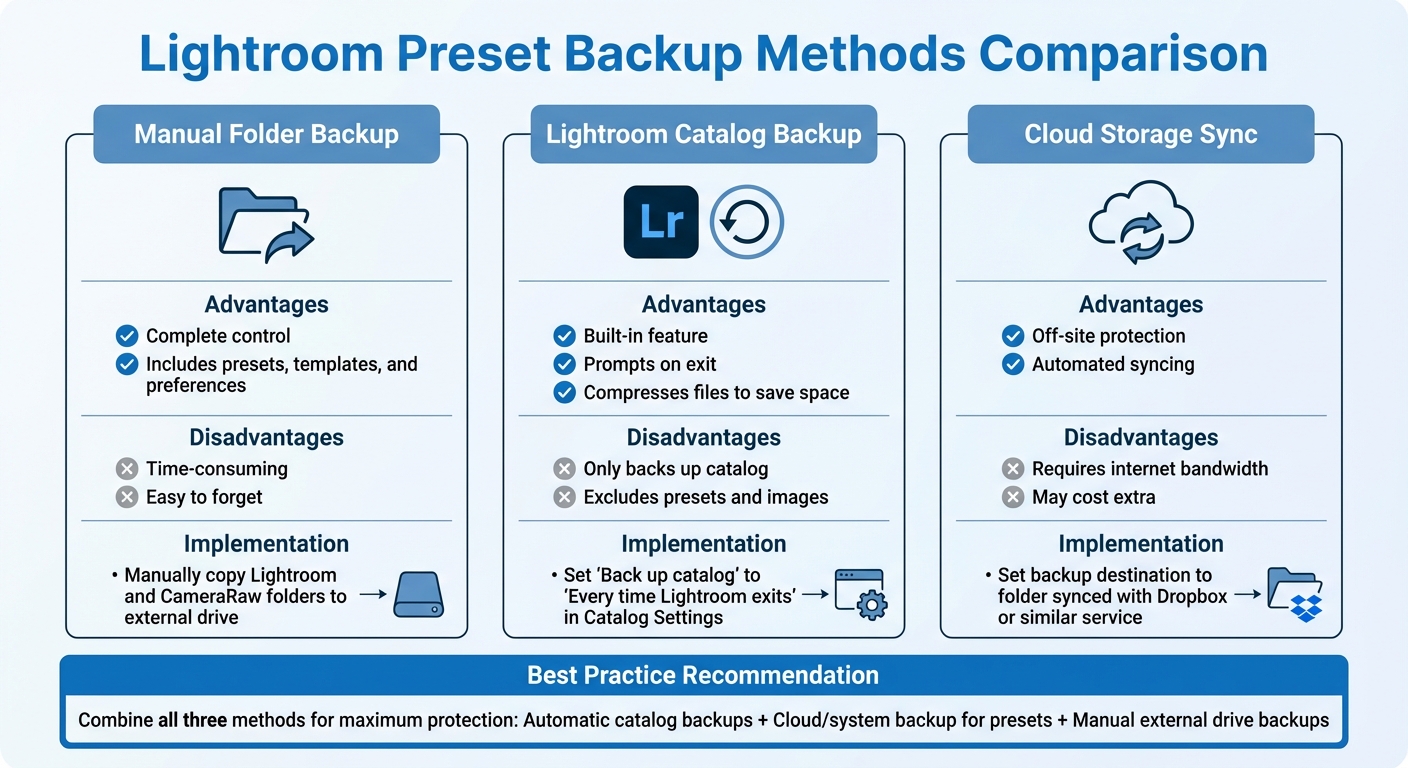
LR Preset Backup Methods Comparison Chart
Protecting your presets from hardware failures and system crashes starts with a solid backup plan. Securing your LR catalog and presets ensures your work stays safe, no matter what happens.
Set Up Automatic Catalog Backups
LR offers a built-in backup feature, but it only saves your catalog file - not your presets or photos. To set this up, go to Edit > Catalog Settings (Windows) or Lightroom Classic > Catalog Settings (macOS). Under the General tab, adjust the "Back up catalog" setting to "Every time Lightroom exits" or "Once a day" for regular backups.
When the backup dialog appears as you exit LR, click Choose to save backups to an external hard drive or a cloud-synced folder like Dropbox or Google Drive. Avoid saving backups on the same internal drive as your working catalog - if the drive fails, both the original and backup could be lost.
"A backup (or a copy) of your LR Catalog ABSOLUTELY needs to be stored somewhere other than on the same computer as your Lightroom!" - Amanda Padgett, Lightroom Instructor
For added safety, enable "Test integrity before backing up" and "Optimize catalog after backing up" in the backup dialog. These options reduce the risk of database corruption and improve performance. Plus, LR Classic v14.2 (released February 2025) introduced a "Backups" panel in Catalog Settings, which makes managing and deleting old backups much simpler.
While catalog backups are essential, don’t forget to safeguard your trending LR presets using external or cloud storage.
Back Up to Cloud Storage or External Drives
Presets are stored separately from your catalog, so they need their own backup process. To find your preset folder, go to Preferences > Presets and click "Show All Other Lightroom Presets."
Regularly copy this folder to an external drive or cloud storage. For a hands-off approach, use automated backup tools like Time Machine (macOS), Backblaze, or CrashPlan (about $7/month) to keep your preset folders synced in the background. This ensures you’re covered in case of unexpected data loss.
Another option is enabling "Store presets with this catalog" in Preferences, which moves your presets into a folder near your catalog file. This makes it easier to back everything up together. However, note that if you use multiple catalogs, presets stored this way won’t appear in all of them.
Backup Methods Compared
Choosing the right backup strategy depends on your needs, but combining multiple methods offers the best protection. Here’s a quick comparison:
| Backup Method | Advantages | Disadvantages | Implementation Steps |
|---|---|---|---|
| Manual Folder Backup | Complete control; includes presets, templates, and preferences. | Time-consuming; easy to forget. | Manually copy the LR and CameraRaw folders to an external drive. |
| Lightroom Catalog Backup | Built-in; prompts on exit; compresses files to save space. | Only backs up the catalog; excludes presets and images. | Set "Back up catalog" to "Every time LR exits" in Catalog Settings. |
| Cloud Storage Sync | Off-site protection; automated syncing. | Requires internet bandwidth; may cost extra. | Set the backup destination to a folder synced with a cloud service like Dropbox. |
For the most secure setup, combine all three methods: let LR handle automatic catalog backups, use cloud or system-wide backup software for presets and images, and occasionally create manual backups to an external drive for added peace of mind.
"Any IT person worth their salt would tell you that you need to have backup software running that backs up your entire system, rather than individual programs only backing up their bits." - Victoria Bampton, The Lightroom Queen
Conclusion
Protecting your LR presets is just as important as knowing how to recover them. Hard drive failures don’t have to spell disaster. By checking your catalog, restoring backups, or retrieving data from other sources, you can often recover presets you thought were gone. The key is to act fast and revisit your system’s preset storage folder as discussed earlier.
That said, prevention is always the better strategy. Set up automatic catalog backups, store your presets on external drives or cloud storage, and regularly verify those backups. As LR instructor Gayle Vehar wisely advises: "You should back them up BEFORE your hard drive crashes! And since you have no idea when that will happen, you should really back them up TODAY".
Don’t forget to back up both .xmp files (modern presets) and .lrtemplate files (older presets). It’s as easy as copying them to Dropbox or Google Drive - a quick step that can save you hours of frustration.
If recovery doesn’t work, you can rebuild your collection with professional presets from Presets.io. Their library includes a variety of options, from cinematic to vintage looks, with new additions every week and simple installation guides to get you back to editing in no time.
Take steps today to secure your presets and avoid unnecessary setbacks.
FAQs
How can I tell where Lightroom is looking for my presets?
To locate where Lightroom keeps your presets, start by opening Edit > Preferences on Windows or Lightroom > Preferences on Mac. Head over to the Presets tab and click Show Lightroom Develop Presets or Show All Other Lightroom Presets to open the folder. Another way is to go to the Develop module, right-click on a preset, and choose Show in Explorer/Finder to directly find it on your computer.
Can I recover presets from a failed drive without any backup?
If your drive has failed and you don’t have a backup, recovering presets is usually out of reach. Presets are stored locally, so without a saved copy, they’re often gone for good. In some rare situations, you might find them embedded in catalog or preview files, but there’s no guarantee. You could try specialized data recovery tools, but keep in mind that the outcome is highly uncertain.
What’s the best way to back up presets and catalogs together?
To keep your Lightroom presets and catalogs safe, it's smart to have a solid backup plan. Start by regularly saving your Lightroom catalog to an external drive or a cloud storage service. At the same time, manually copy your preset files to a secure spot. For added convenience, consider using backup software to automate the entire process. This way, your presets, edits, and collections stay protected from unexpected system crashes or hardware issues.