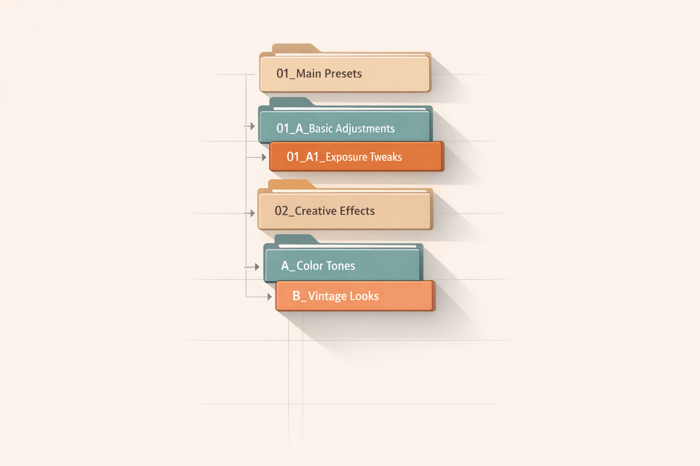

Table of Contents
AI Style Transfer for Lightroom Presets
AI style transfer is transforming photo editing by personalizing adjustments for each image instead of applying the same static settings. Unlike new Lightroom presets, these tools analyze details like lighting, colors, and histograms to create tailored edits. They can even learn your editing style by studying thousands of your past edits, saving you time while maintaining your artistic touch. With AI tools, you can edit 1,000 images in under a minute, achieve consistent results across diverse photos, and still retain full control over the final look.
Here’s why AI-powered Lightroom presets stand out:
- Faster Workflow: Cuts editing time by up to 96% - processing a photo in just 0.5 seconds.
- Custom Adjustments: Adapts edits based on each image’s unique attributes.
- Personal AI Profiles: Learns your editing style from 2,000–3,000 images for precision.
- Consistency: Delivers uniform results across varied lighting and shooting conditions.
- Non-Destructive Editing: Keeps all adjustments reversible for full control.
AI doesn’t just speed up editing - it simplifies repetitive tasks like exposure tweaks and masking, letting you focus on refining the final touches. Whether you’re working on a wedding shoot or a large portfolio, such as those found in The Master Preset Bundle, AI tools bring efficiency and precision to Lightroom workflows.
How AI Style Transfer Works for Lightroom Presets

The Role of Neural Networks in Style Transfer
Neural Style Transfer (NST) relies on Convolutional Neural Networks (CNNs) to separate an image's content from its artistic style and then blend them seamlessly. The original NST algorithm, developed by Leon Gatys and his team in 2015, used the VGG-19 architecture - a model pre-trained on the ImageNet dataset for object recognition.
The process hinges on two main loss functions: Content Loss and Style Loss. Content Loss focuses on preserving the photo's essential features, such as composition and structure, by comparing neural activations in higher layers. Style Loss, on the other hand, uses Gram matrices to replicate textures, patterns, and color schemes from the reference style. By balancing these losses, the AI can effectively retain a photo's content while applying a chosen artistic style.
In 2017, Google AI introduced a technique that allowed a single deep convolutional network to handle multiple styles and even interpolate between them in real time. More recent advancements, like symmetric convolution-deconvolution architectures, have significantly sped up the process.
Integration with Lightroom Presets
AI-powered Lightroom presets, often referred to as "smart presets", go beyond the static adjustments of traditional presets. These advanced tools analyze each photo's unique attributes - such as lighting, white balance, and subject matter - before making tailored adjustments. This ensures that a sunset portrait and a dimly lit indoor shot receive adjustments that suit their specific conditions.
Photographers can also train the AI to mimic their editing style. By uploading a collection of 2,500 to 5,000 previously edited images, the AI learns their preferences for color grading, shadow and highlight adjustments, and cropping. For those without a large library of edited photos, pre-built AI Styles are available in marketplaces. These profiles, trained on extensive datasets, cater to popular aesthetics like cinematic, vintage, or film-inspired looks. Once applied, the AI fine-tunes the style for each photo, maintaining consistency across diverse lighting and shooting conditions.
This dynamic approach transforms editing into a more personalized and efficient process.
Examples of Style Transfer in Action
AI style transfer doesn’t just apply a one-size-fits-all filter - it customizes adjustments for each photo. Consider a cinematic style: the AI might automatically apply teal-orange color grading, deepen shadows, and add film grain, but only in areas where it enhances the scene. For a vintage or film-inspired look, the AI goes beyond adding a basic sepia tone. It evaluates the photo’s histogram and color channels, deciding how much to fade the blacks, where to shift colors in the highlights, and how to replicate authentic film grain textures.
This tailored approach ensures that a vibrant beach photo and a moody forest shot both achieve the desired aesthetic without requiring manual edits, delivering professional-quality results with minimal effort.
sbb-itb-b27063b
How to Create Your Own Adaptive Presets in Lightroom Classic (Step-by-Step Tutorial!)

Benefits of AI Style Transfer for Lightroom Users
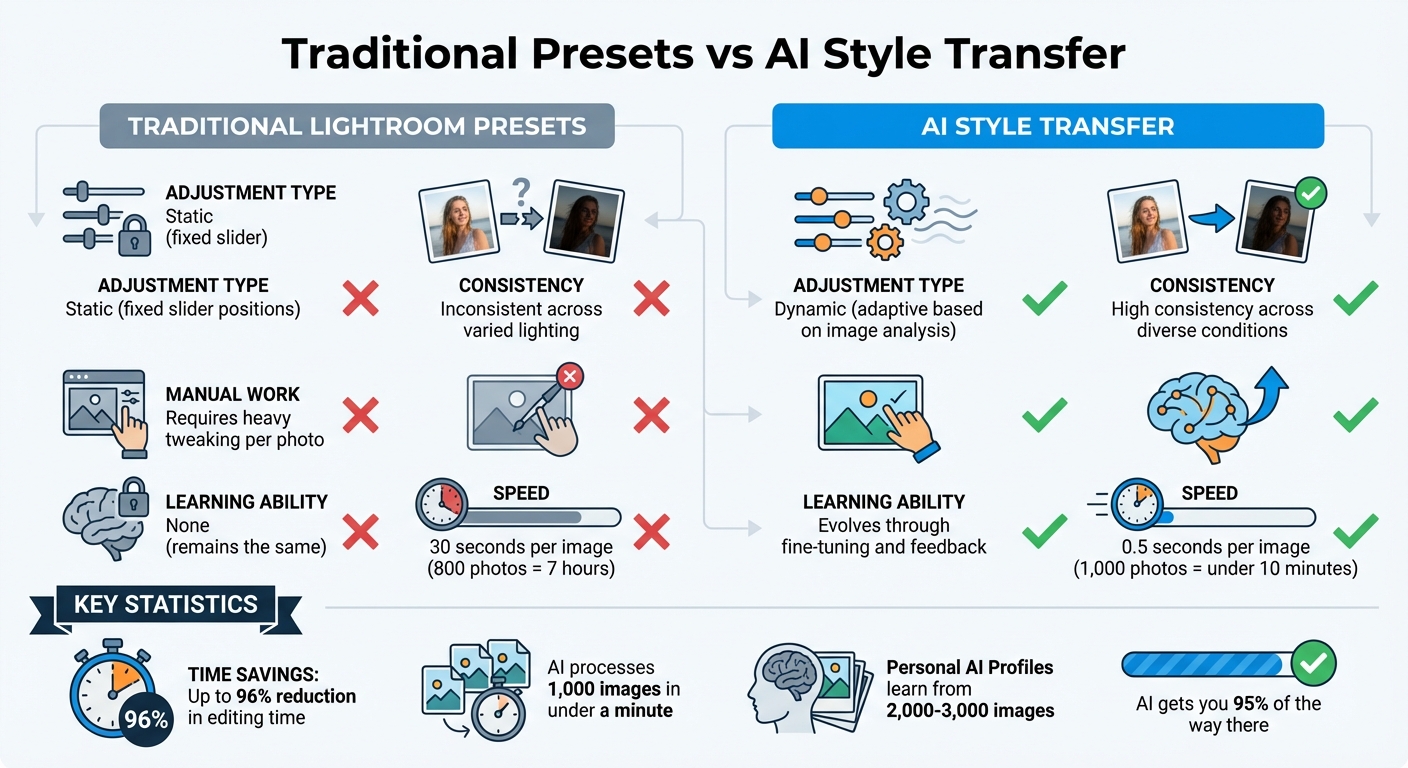
Traditional Lightroom Presets vs AI Style Transfer Comparison
AI style transfer builds on Lightroom's smart, image-specific adjustments, offering a leap forward in efficiency and creative control.
Time-Saving Automation
Editing photos one by one can feel like an endless task, especially with traditional presets that often require manual tweaks. For instance, adjusting 800 photos can take nearly seven hours at 30 seconds per image. AI, however, changes the game. It analyzes each photo's unique data and applies tailored adjustments in just 0.5 seconds per image. Imagine editing a 1,000-photo shoot in under 10 minutes - it's a reality with AI.
But it doesn’t stop at color and tone. AI tools can also handle cropping, straightening, subject masking, and even basic retouching tasks like skin smoothing and teeth whitening. These advanced tools integrate seamlessly with Lightroom Classic catalogs, preserving the non-destructive RAW workflow. The result? More time to focus on creative fine-tuning and less time bogged down in repetitive tasks.
More Creative Options and Customization
AI style transfer offers a level of creativity and personalization that static presets simply can’t match. For example, Personal AI Profiles learn your unique editing style by analyzing thousands of your past edits. These profiles then generate custom adjustments that reflect your artistic preferences. If you’re working with fewer images, Lite Profiles can adapt a single preset as a style guide, automatically adjusting exposure and white balance to fit each photo.
For those seeking inspiration, Talent AI Profiles - adaptive styles trained on the work of top photographers - provide dynamic adjustments rather than a one-size-fits-all filter. The best part? These profiles evolve. When you upload your final manual tweaks, the AI learns from them, refining its future edits to better match your preferences. This creates a workflow where AI handles 95% of the heavy lifting, leaving you to focus on the final artistic touches.
Consistency Across Multiple Photos
AI doesn’t just save time or expand creative possibilities - it also ensures a consistent look across your entire set of images. Traditional presets apply the same fixed settings to every photo, which often leads to inconsistent results, especially under varied lighting conditions. AI, on the other hand, analyzes each image individually and adjusts settings dynamically to achieve the desired look. For example, it might brighten a dimly lit shot while applying subtler tweaks to a well-lit one, ensuring both images share the same aesthetic.
This level of consistency is invaluable for high-volume projects. Professional photographer Michelle VanTine demonstrated this in June 2024, using AI editing tools for skincare campaigns and sports events. She managed up to 10,000 images daily and achieved consistent color correction and styling across her work while cutting her workflow time by an impressive 96%.
| Feature | Traditional Lightroom Presets | AI Style Transfer |
|---|---|---|
| Adjustment Type | Static (fixed slider positions) | Dynamic (adaptive based on image analysis) |
| Consistency | Inconsistent across varied lighting | High consistency across diverse conditions |
| Manual Work | Requires heavy tweaking per photo | 95-99% complete; minimal review needed |
| Learning Ability | None (remains the same) | Evolves through fine-tuning and feedback |

The Master Preset Bundle: Volume II

$69.00
$990.00
The Master Preset Bundle Volume II New Looks. More Styles. Even More Creative Control. Get 66 brand-new Presets.io collections in one powerful Volume 2 bundle — crafted to expand your editing range, refresh your workflow, and deliver polished, professional results in… continue reading
How to Use AI Style Transfer for Lightroom Presets
Getting Started with AI-Powered Presets
Installing AI-powered presets in Lightroom is as straightforward as setting up traditional ones. In Lightroom Classic, head to the Develop module, click the + icon in the Presets panel, and import your .zip or .xmp files. For Lightroom CC, navigate to File > Import Profiles & Presets. On mobile, you can sync or import presets through the app's menu.
What sets AI-powered presets apart is their ability to adapt. While traditional presets apply fixed slider adjustments, AI presets use machine learning to evaluate exposure, color balance, and contrast. This means the preset tailors itself to each photo, making editing faster and more precise.
Step-by-Step Workflow
Start by importing your photos into Lightroom. Before applying an AI preset, adjust the white balance using the eyedropper tool on a neutral tone in your image. Once that's done, open the Develop module, select an AI preset, and let Lightroom analyze and enhance your photo.
To control the effect's intensity, use the Amount slider - a range of 70–130 often works best. After applying the preset, you can refine specific areas with AI masking tools like "Subject", "Background", or "People." For example, you might tweak skin tones by reducing Orange Saturation and increasing Orange Luminance, or adjust greenery by shifting the Green Hue toward yellow and lowering its saturation.
Once you've applied the preset and initial adjustments, fine-tune your photo to achieve the desired look.
Tips for Better Results
AI style transfer can save up to 80% of your editing time compared to manual adjustments. If shadows look too dark, raise the "Blacks" slider or adjust the curve points. For overly bright highlights, lower the Highlights slider or tweak the top of the Tone Curve.
"The AI gets you 95% of the way there, but you always have the final say." - Itamar Haim, Imagen
When editing multiple photos, use Ctrl+Shift+C (Windows) or Cmd+Shift+C (Mac) to copy settings across images. Just make sure to uncheck "Crop" to keep individual compositions intact [16,19]. For high-resolution outputs, you can use AI upscaling tools like waifu2x or ESRGAN after completing the style transfer. If you notice memory issues or noise, try reducing the image size or lowering the style weight.
These adjustments let you harness the AI's power while ensuring your creative vision remains intact.
Conclusion
Key Takeaways
AI style transfer is reshaping how photographers approach editing in Lightroom. Unlike traditional presets that rely on fixed slider values, AI profiles take a more tailored approach. They analyze the unique traits of each photo - like exposure, white balance, and lighting - and generate custom adjustments. This ensures your entire gallery maintains a consistent look, whether it’s a dimly lit indoor shot or a bright outdoor scene.
The real beauty of AI-driven editing lies in its ability to boost efficiency without compromising your artistic vision. For example, AI-powered tools can cut post-production time by as much as 96%, processing each image in just 0.5 seconds. As Team Aftershoot explains:
"In 2026, AI presets are about eliminating repetition. They give you a strong starting point so you can spend time where your judgment matters".
By automating repetitive tasks like culling and exposure adjustments, these tools free you up to focus on the creative decisions that truly matter. Whether you’re creating a Personal AI Profile using over 2,000 of your own edits or leveraging pre-trained Talent Profiles from seasoned photographers, the process is non-destructive and keeps you in control.
These advancements are opening new doors for photographers looking to refine their editing process.
Exploring AI-Powered Preset Collections
If you’re ready to take your editing workflow further, AI-powered preset collections are a great place to start. Platforms like Presets.io offer a variety of Lightroom presets, including aesthetic, cinematic, vintage, and film-inspired collections. While these traditional presets provide a solid foundation, pairing them with AI style transfer techniques can elevate both creativity and efficiency.
Test AI profiles on a single shoot to see how they handle different lighting scenarios. The learning curve is minimal, but the improvement in speed and consistency could revolutionize how you approach your work. By integrating AI into your editing process, you’ll be able to achieve professional results with less effort and more time to focus on your craft.
FAQs
Do AI presets replace my Lightroom presets?
AI presets bring something new to the table but don’t entirely take over the role of traditional Lightroom presets. Here's the key difference: traditional presets apply the same adjustments across all photos, giving you consistent but static results. On the other hand, AI presets are smarter - they adapt to the unique features of each photo. They can even learn your editing style and handle tasks like cropping or masking automatically.
Think of AI presets as a complement to traditional ones. They offer more personalized and dynamic edits, while classic presets are still great for quick, uniform adjustments when you need them. Together, they make editing more versatile and efficient.
How many edited photos are required to train a Personal AI Profile?
To train a Personal AI Profile effectively, you’ll need a minimum of 2,000 edited photos. This amount of data allows the AI to thoroughly learn your unique editing style and preferences, ensuring accurate and consistent results.
Will AI style transfer work on RAW files without damaging my edits?
When using AI style transfer for Lightroom presets, the process typically works with previews or metadata rather than the full RAW files. This approach ensures that your original edits and RAW data stay untouched, preserving their integrity throughout the process.